
Open the website editor and find your way around
The website editor is where you build and shape your community's public site. Before you start moving blocks around, it helps to know how to get there and what each part of the screen is for. This guide walks you through opening the full-screen builder and gives you a quick tour of the layout so you always know where to click.
Who can edit the website
The website builder is edited by community owners and admins from inside the orange platform panel. Community managers and agents cannot edit it, and there is no member-facing website editor. (The platform's own marketing site is a separate, super-admin-only surface.)
Open the editor
The editor lives one step past the Website Overview page. The Overview is your home base for status, the public URL, favicon, redirects, domains, and backups — see Create your community website for how the Overview is organized.
- In the orange platform panel, open Website. This lands you on the Website Overview.
- Click the Website editor card (also labeled Manage in editor) to launch the full-screen builder.
- The builder opens at its own address and takes over the whole screen — the platform sidebar is hidden so you have room to work.
Tour the layout
The editor has three main areas: a dark top bar, a left icon rail, the live canvas in the middle, and an inspector that appears on the right when you select something.
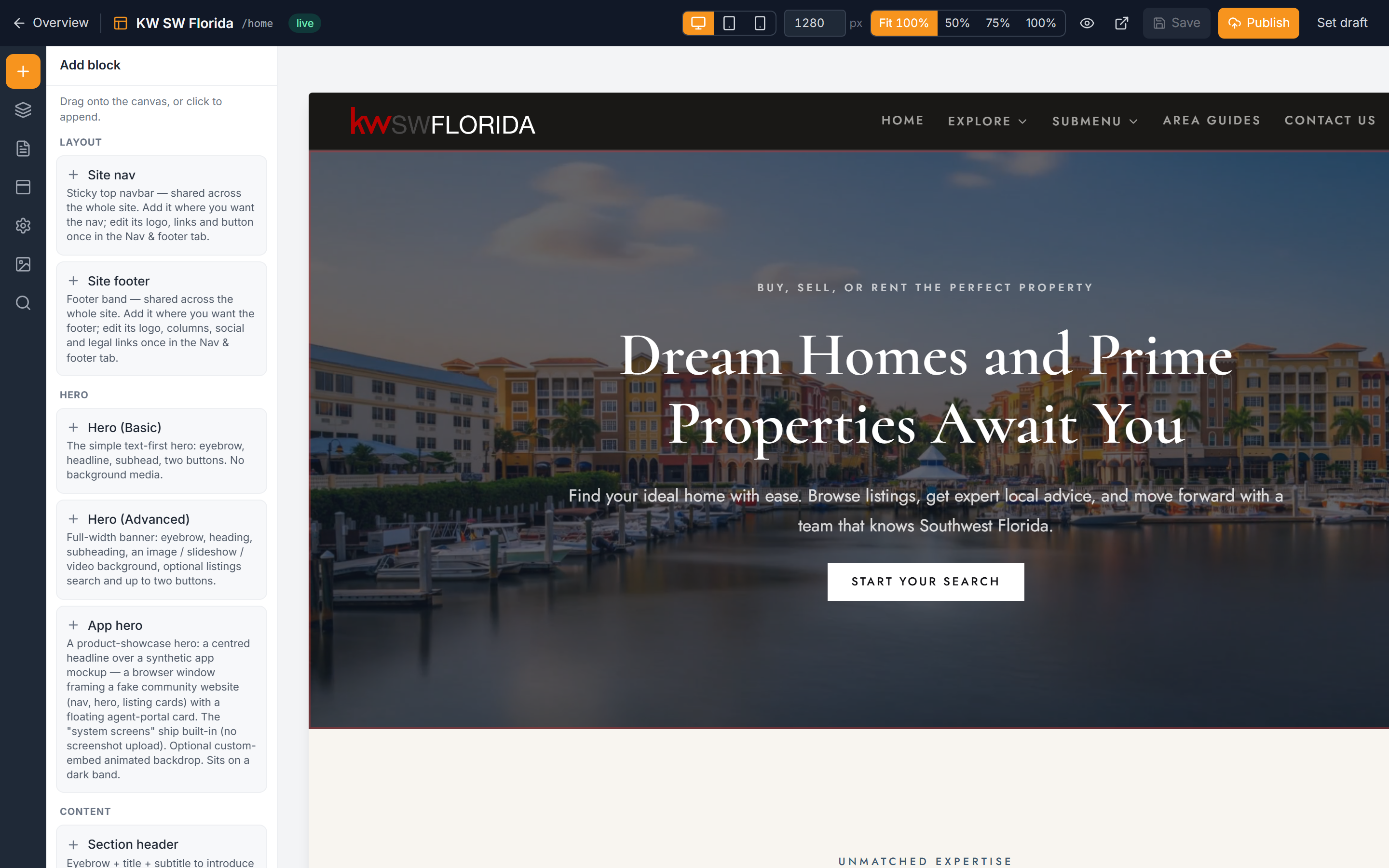
The top bar
The dark bar across the top holds your global controls:
- Overview (or the back arrow) exits the editor and returns you to the Website Overview page.
- The site name and page name show what you're editing right now.
- A Live or Draft status pill tells you whether the current page is published.
- Device buttons switch the canvas between desktop, tablet, and phone widths so you can check how each looks.
- Zoom controls scale the canvas in or out.
- Preview links open the real page in a new tab.
- Save, Publish, and Go live commit your work — see Take your website live for exactly what each one does.
The left icon rail
Down the left edge are seven tabs. Clicking one opens its panel:
- Add — the block palette. Pick a section and drop it onto the page. See Add and arrange blocks.
- Navigator — a flat list of every block on the page, handy for jumping around or reordering.
- Pages — create, rename, and organize the pages of your site. See Manage website pages.
- Nav & footer — edit the menu and footer that appear on every page. See Set up site navigation.
- Site settings — your site's theme, colors, and style. See Choose a theme.
- Assets — your uploaded images. See Manage website images.
- SEO — page titles, descriptions, and search settings. See Website SEO basics.
The canvas
The middle of the screen is a true, live preview of your page — what you see is byte-for-byte what visitors get on the published site. There's no separate "preview mode" to guess at; the canvas is the real thing.
The inspector
The panel on the right only appears when you select a block on the canvas. It holds that block's settings — its text, images, background, and style options. Click a block to open it; click an empty area to dismiss it. See Edit block content.
Exit the editor
To leave, click Overview or the back arrow in the top bar. That returns you to the Website Overview page and brings the platform sidebar back.
Troubleshooting
I don't see the Website option in the platform panel
Only community owners and admins can edit the website. If you're a manager or agent, you won't see the editor, and the option may be hidden for your role. Ask a community owner or admin to make the change or adjust your access.
The editor filled my whole screen and the sidebar is gone
That's expected. The editor hides the platform sidebar and takes over the full screen so you have maximum room to build. Click Overview or the back arrow in the top bar to return and bring the sidebar back.
The inspector panel is empty or missing
The right-hand inspector only shows up when a block is selected. Click any block on the canvas to open its settings; click an empty part of the page to close it.
I'm not sure whether my page is published
Check the Live / Draft status pill in the top bar — it reflects the page you're currently viewing. For how publishing and going live work, see Take your website live.