
Add social proof: stats, testimonials, case studies, and logos
Social proof is what turns a curious visitor into a lead. The website editor gives you a whole group of blocks for it — headline numbers, quotes from happy clients, case studies, partner logos, and Zillow ratings — so you can show credibility instead of just claiming it. All of these live under the Social proof group in the Add panel and are edited by community owners and admins inside the orange platform panel.
Add a social-proof block
- Open your community website in the full-screen editor (see Open the website editor).
- In the left icon rail, click Add to open the block picker.
- Choose the Social proof group.
- Pick the block you want. It drops onto the canvas where you can select it and edit its content in the right inspector.
For how to fill in a block's text and fields once it's on the page, see Edit block content.
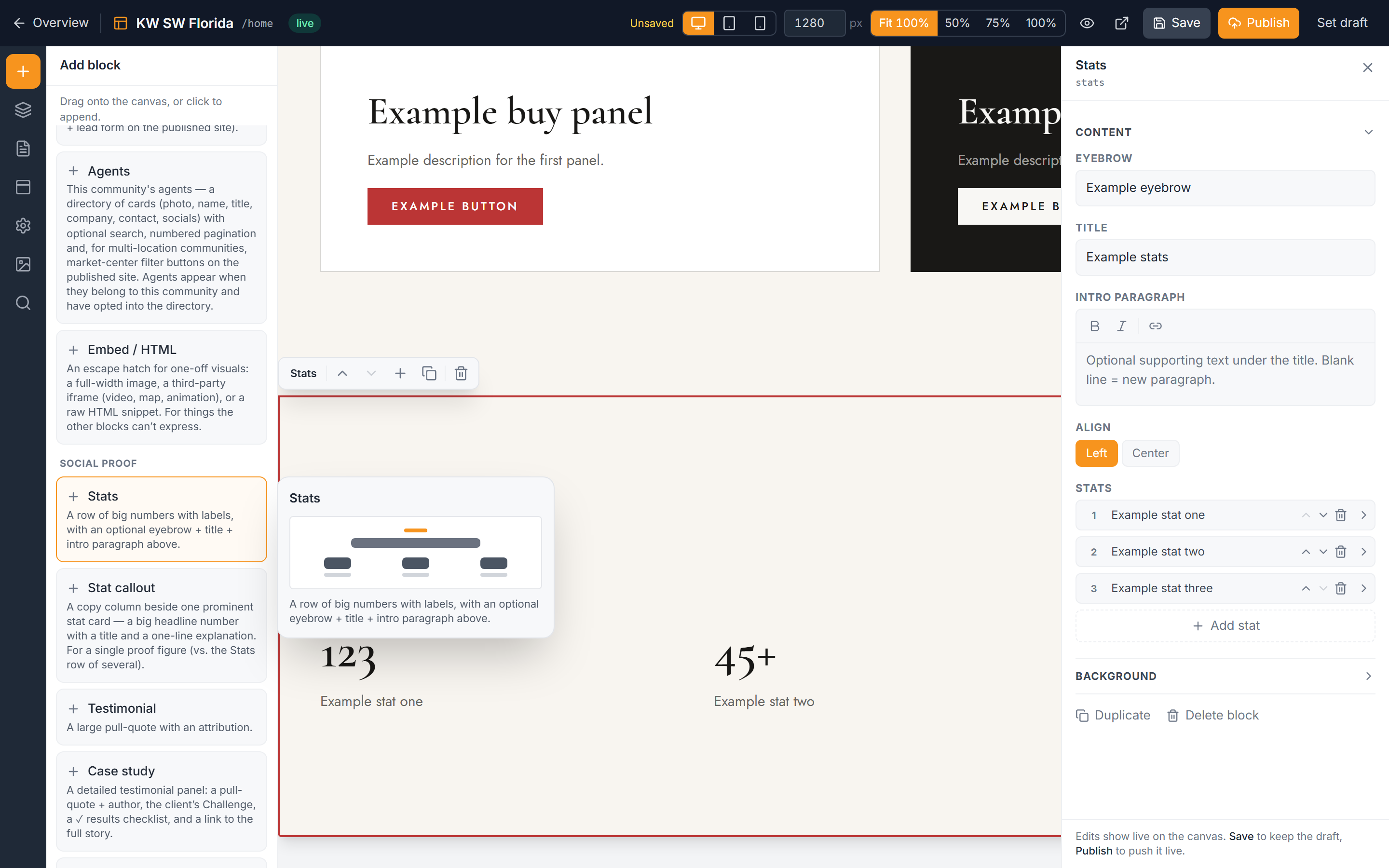
The number blocks
These blocks put hard figures front and center.
- Stats — a row of big value/label pairs (for example, "500+ / Homes sold"), with an optional short intro above the row. If you add a trailing qualifier to a value, like "#1 in the US", it renders smaller so the headline number stays dominant.
- Stat callout — one prominent stat presented as a card sitting beside a column of supporting copy. Use this when a single number deserves the spotlight and a sentence or two of context.
The testimonial blocks
Several layouts let you present client quotes in the shape that fits the page.
- Testimonial — a single quote with the author's name underneath. Clean and simple for one strong endorsement.
- Testimonial cards — a grid of quotes shown all at once, good for a wall of praise.
- Testimonial carousel — quotes that rotate one at a time, so the section stays compact while still cycling through several voices.
- Testimonial photo cards — a full-bleed photo carousel where each slide pairs a large image with a quote, for a more visual, immersive feel.
Case study
The Case study block tells a fuller story than a single quote. Each one combines a client quote, a short Challenge describing the problem, a checklist of results (each marked with a ✓), and a link out to more detail. Use it when the outcome is worth walking through, not just stating.
Logo strip
The Logo strip shows partner, brokerage, or press logos in a row to borrow their credibility.
- Add the Logo strip block and upload your logo images.
- Choose whether the row sits static or animates as an infinite sliding marquee.
- If you use the marquee, drag the speed slider to set how fast the logos scroll.
Zillow reviews
The Zillow reviews block surfaces your Zillow reputation. It comes in two forms:
- A compact rating badge — a small summary of your star rating.
- A grid of review cards — individual reviews shown side by side.
Important: reviews are typed in by you, not pulled live from Zillow. Copy the review text and details you want to show into the block's fields; they won't update automatically when new Zillow reviews come in.
Related
Social-proof blocks pair naturally with the narrative and layout blocks — see Content blocks for the surrounding copy, headings, and media that frame your proof.
Troubleshooting
My qualifier text is huge instead of small
In the Stats block, only a trailing qualifier on a value (like "#1 in the US" after the number) renders smaller. Make sure the qualifier is entered as part of that value's field and not as the main value or the label.
My Zillow reviews aren't updating
They never will on their own — the Zillow reviews block does not connect to Zillow live. Every review is typed in manually, so to reflect new reviews you have to add or edit them in the block yourself.
The logo marquee won't move
The row only scrolls when it's set to the sliding marquee option, not static. Switch it to marquee, then use the speed slider to set the pace.
I can't find the Social proof group
The block picker only opens for community owners and admins in the orange platform panel. Community managers and agents can't edit the website, and there's no member-facing editor. If you don't see Add, check that you're in the full-screen editor with the right access.