
Add an agent directory (and team blocks)
Showcasing your agents builds trust and gives visitors an easy way to find someone to talk to. The website builder gives you three ways to do it: a live, searchable Agents directory that stays in sync as your roster changes, a hand-picked Team roster you curate yourself, and a single Agent bio module to spotlight one person. This article covers all three and the one gotcha that trips people up — why the directory can look empty at first.
Only community owners and admins can edit the website, inside the orange platform panel. All of this happens in the full-screen website editor. If you need to get there first, see Open the website editor.
Add a live agent directory
The Agents block pulls your community's agents straight from their profiles — photo, name, title, company, contact details, and social links — and keeps itself up to date as agents join or update their info. It can include a search box, numbered pagination, and, for communities with more than one location, market-center filter buttons.
- In the editor's left icon rail, open the Add panel.
- Choose the Content group, then pick Agents.
- Click into the block on the canvas to open its settings in the right inspector.
- Set Columns to control how many agent cards sit side by side.
- Set Max agents to cap how many people the directory shows in total.
- Turn on Show search box if you want visitors to search by name.
- Set Agents per page to control how many cards appear before pagination kicks in.
- If your community spans several locations, use Limit to market centers to restrict the directory to the offices you choose. Leave it off to show everyone.
The Agents block is available on community sites only.
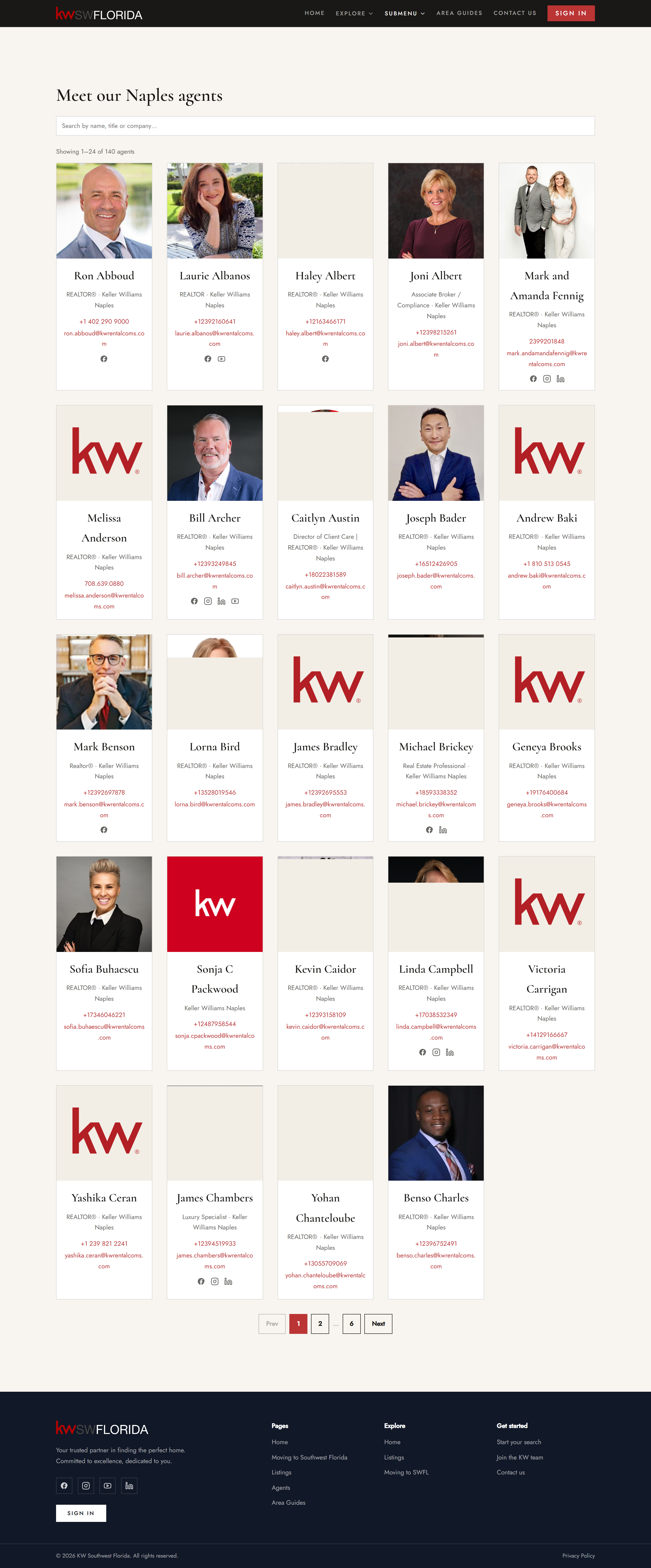
Why your directory might look empty
Agents are opt-in. An agent only appears in the directory after they turn on their Agent Directory listing in their own Account Settings — and that setting is per-community and off by default. So a brand-new directory can look empty even though you've added the block correctly.
This is by design: agents control whether they're publicly listed. To fill the directory, ask your agents to enable their directory listing in their member portal settings. As each one opts in, they'll appear automatically — you don't need to touch the block again.
Curate a Team roster instead
If you'd rather hand-pick who appears and in what order — say, a leadership row or a featured team — use the Team block. Instead of pulling live from profiles, you author each card yourself. The cards flip on hover to reveal contact details, which makes for a polished "meet the team" section.
- In the Add panel, under Content, add the Team block.
- Select the block and use the right inspector to add each team member's photo, name, role, and contact info.
- Arrange the cards in the order you want them shown.
Because you author it by hand, the Team block ignores the agent opt-in — whoever you add, appears.
Spotlight one agent with a Bio block
To feature a single person — a "meet your agent" introduction — use the Agent bio block. It presents one agent's photo, story, and contact in a focused module with two layouts:
- Split places the photo beside the text.
- Centered stacks the photo above centered text.
- In the Add panel, under Content, add the Agent bio block.
- Select the block and choose Split or Centered in the right inspector.
- Fill in the agent's photo, bio, and contact details.
Troubleshooting
My agent isn't showing in the directory
The live Agents block only lists agents who have turned on their Agent Directory listing in their own Account Settings. This opt-in is per-community and off by default, so ask the agent to enable it in their member portal. Once they do, they'll appear automatically. If you need a fixed, curated set of people regardless of opt-in, use the Team block instead.
The directory is on the wrong locations
Check the Limit to market centers setting on the Agents block. If it's set to specific offices, only agents in those market centers show. Clear it to show every agent in the community.
I want to show listings too
Agents and property listings are separate blocks. To add a listings grid to your site, see Show your property listings on your website.