
Edit a block's content in the inspector
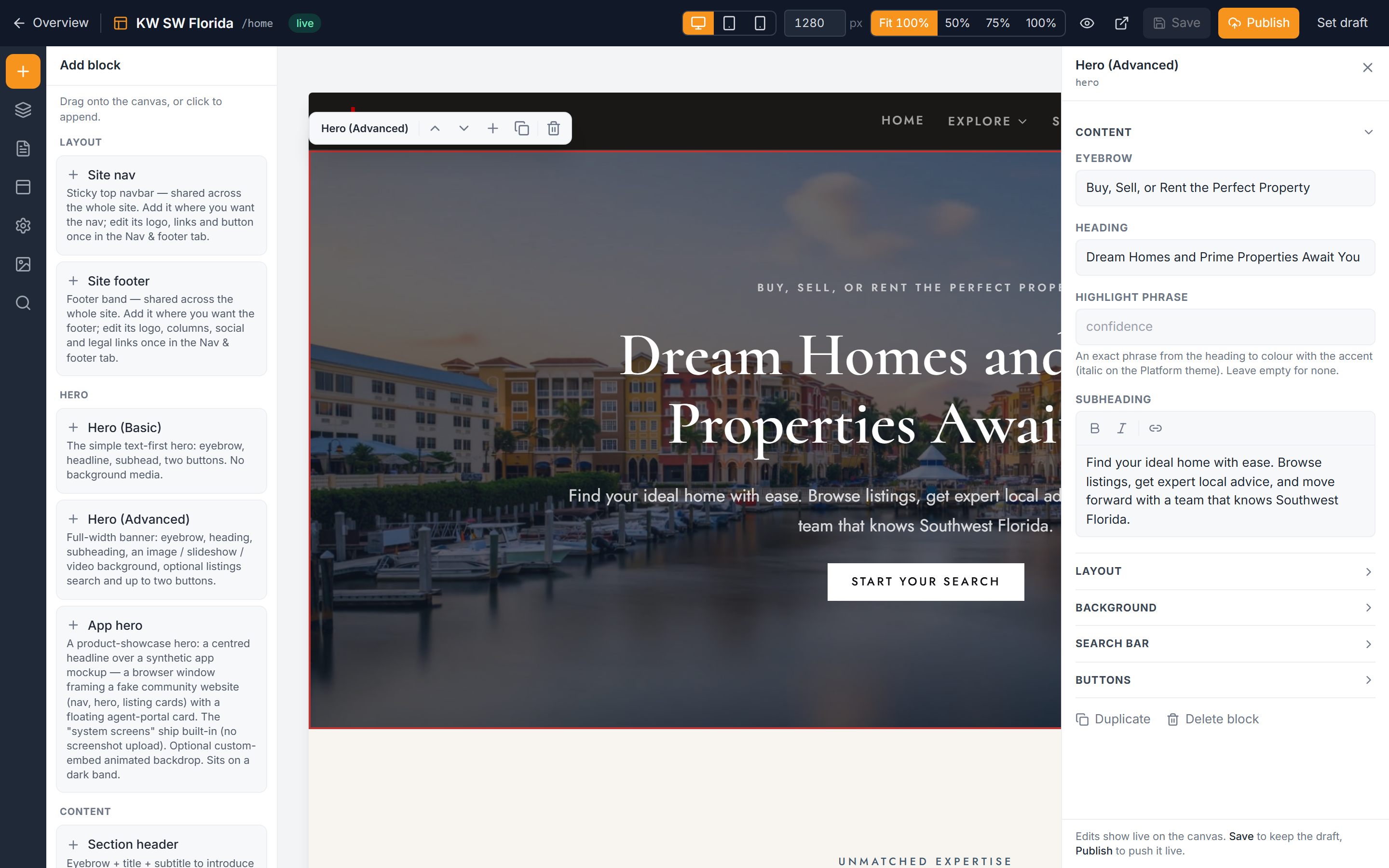
Every block on your website is edited the same way: you select it, and its settings open in the inspector on the right side of the editor. Once you know how the inspector's fields behave, you can edit any block confidently. This is where you change headlines, swap images, edit lists of cards, and set links.
Open the inspector
- Open your community's website editor. If you're not sure how, see Open the website editor.
- Click any block on the live canvas to select it.
- The inspector opens on the right, showing that block's fields. Only community owners and admins can edit the website — managers and agents can't.
The inspector's fields are grouped into collapsible accordion sections. Click a section heading to open or close it. A Background section is always the last one. The editor remembers which sections you left open or closed for each block type, so the layout stays how you like it as you move between blocks.
Editing repeatable lists
Some blocks hold a list of repeated items — a row of cards, a set of links, a list of stats. These show up as compact rows in the inspector.
- Click a row to drill in and edit that single item on its own screen.
- Edit the item's fields, then use the back control to return to the full list.
- Use the reorder controls to change the order of items, and the delete control to remove one.
Working on one item at a time keeps a long list manageable and prevents you from editing the wrong card by accident.
Field types you'll meet
Different fields behave differently. Here's what each one does:
- Plain text — a single line, for things like a headline or a button label.
- Multi-line text — a taller box for longer copy such as a paragraph.
- Rich text — text with a small formatting toolbar for bold, italic, and links. On full markdown fields you also get headings and bullet lists.
- Yes/No toggle — a simple on/off switch for showing or hiding something.
- Option pills or dropdown — pick one choice from a set (for example, an alignment or a layout style).
- Slider — a 0–100% control, used for things like opacity.
- Image field — either upload a new image or click Choose from library to reuse one you've already added. See Manage website images.
- Link picker — set where a button or link goes (covered below).
Setting a link
When a field controls where a button or link points, it opens the link picker.
- Choose an internal page from your site, or type a full web URL for an external destination.
- Turn on open in new tab if you want the link to open in a separate browser tab (useful for links that leave your site).
Uploading images
When you pick a file in an image field, it uploads immediately and is added to your Asset Library, so you can reuse it later without uploading again. Keep these limits in mind:
- Images are capped at roughly 1920px wide and 10MB.
- Video files are capped at 50MB.
For more on backgrounds behind a whole section (rather than an image inside a block), see Section backgrounds.
Resize the inspector
If a field feels cramped, you can widen the inspector.
- Drag the left edge of the inspector to make it wider or narrower.
- Double-click the edge to reset it to the default width.
Saving your edits
Your changes appear live on the canvas as you type, but they aren't saved or published yet. The inspector footer has:
- Duplicate — make a copy of the selected block.
- Delete — remove the selected block.
- A reminder that you must Save to keep your changes as a draft, or Publish to push them to the live public site.
Editing on the canvas is safe to experiment with — nothing reaches your public website until you publish. See Take your website live.
Troubleshooting
My changes disappeared when I left the editor
Edits show live on the canvas but aren't kept until you Save (draft) or Publish (live). If you closed the editor without saving, those changes are lost. Save as you go.
I can't find the field I need
Fields are tucked inside collapsible accordion sections. Open each section heading in the inspector — the field may be in a closed section. Background settings are always in the last Background section.
My edits don't show on the public site
Showing live on the canvas is not the same as being public. Click Publish to push your saved draft to the live site.
My image won't upload
Check the file size and dimensions. Images must be about 1920px wide or smaller and under 10MB; videos must be under 50MB. Resize or compress the file and try again.
I don't see an edit option for the website
Only community owners and admins can edit the website. If you're a manager or an agent, you won't have access to the builder.