
Embed a map, video, or custom HTML
Most of your page comes from purpose-built blocks, but sometimes you need to drop in something they don't cover — a Google Map, a YouTube video, or a snippet of markup from another service. The Embed / HTML block is the escape hatch for exactly those one-off cases. Like the rest of the website builder, it's edited by community owners and admins in the orange platform panel.
Add the Embed / HTML block
- Open the full-screen editor for your site. If you're not sure how, see Open the website editor.
- In the left icon rail, click Add to open the block picker.
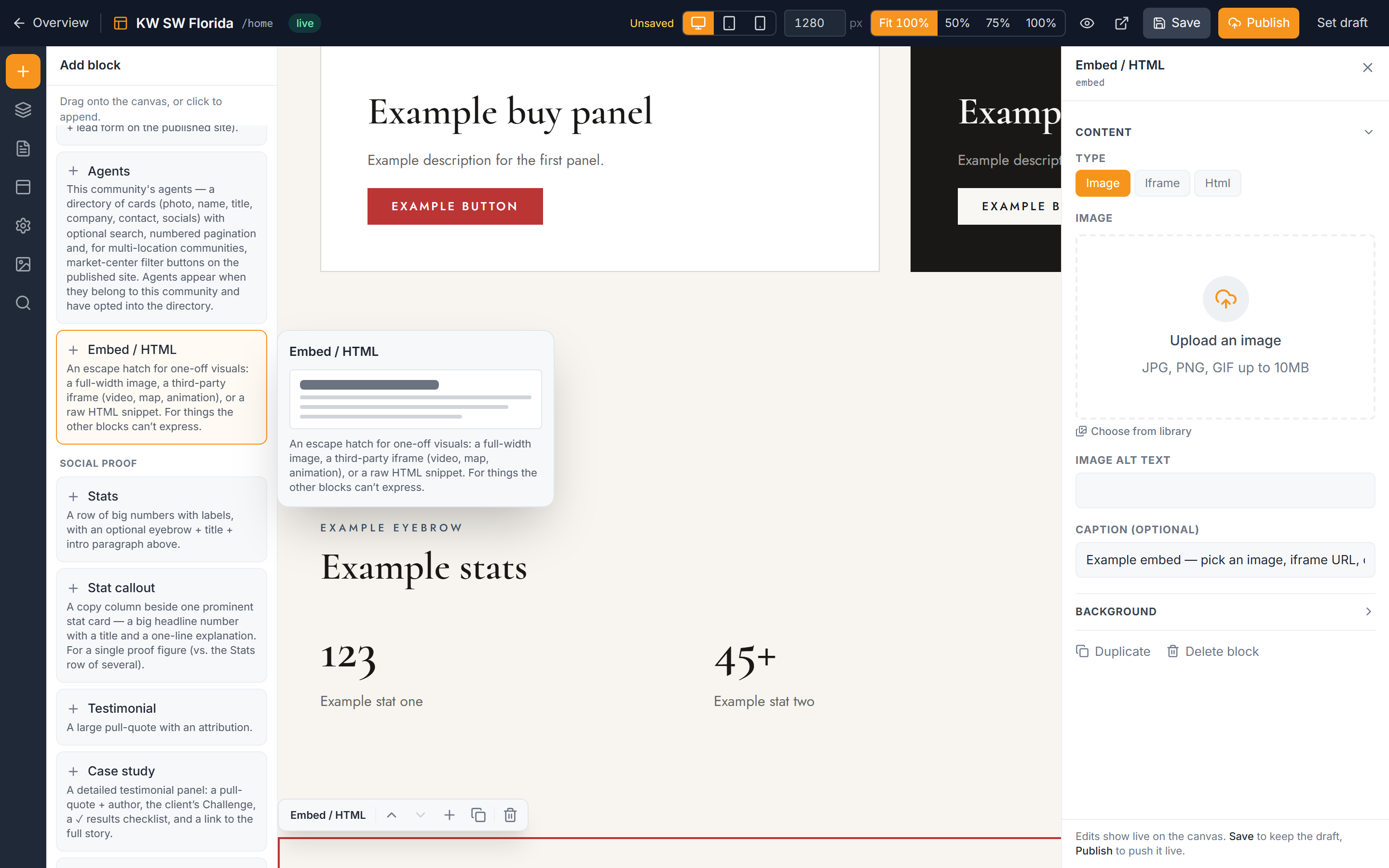
- Under the Content group, choose the Embed / HTML block. It drops onto the canvas where you can position it like any other block — see Add and arrange blocks.
- With the block selected, open the right inspector to set its Type and content.
Choose a type and fill the matching field
The block does one thing at a time. Set the Type to match the kind of content you're adding, then fill the field that appears for it.
- In the inspector, set Type to one of:
- Image — for a single image. Paste or pick the image URL.
- Iframe — for embedded third-party content like a map or a video.
- HTML — for raw markup you paste in yourself.
- Fill the field that matches your chosen type (see below).
- Optionally add a caption — a short line of text shown beneath the embed.
Embedding an iframe (maps, videos)
Set Type to Iframe, then paste a bare embeddable URL into the iframe field — not a full `<iframe>` tag. Most services give you both, so grab just the address:
- Google Maps — use the map's embed URL.
- YouTube — use the video's embed URL (the `youtube.com/embed/...` form), not the normal watch link.
If you paste a whole `<iframe …>` tag instead of just the URL, the embed won't work. Copy only the address inside the tag's `src`.
Embedding raw HTML
Set Type to HTML to paste in markup that renders verbatim on the page. This is powerful, so it's limited to owners and super-admins. Only paste HTML you trust and understand — it runs exactly as written, so a bad snippet from an unknown source can break the page or introduce a security risk.
Related articles
- Add and arrange blocks — positioning the block on your page.
- Content blocks — the built-in text and media blocks that cover most needs.
- Manage website images — the image library for the Image type.
Troubleshooting
My embed is blank
Almost always this means the Type doesn't match the field you filled. If you pasted an iframe URL but left Type on Image (or vice versa), the block renders nothing because it's looking at the empty field. Set the Type to match the content you entered and the embed appears.
The map or video shows an error or empty box
Some websites refuse to be embedded — they send security headers (X-Frame-Options or a content security policy) that block display inside another site. If a service won't show up no matter what, it likely can't be embedded at all. Check whether the provider offers an official "embed" URL; if it doesn't, that content can't be placed here.
I pasted an iframe tag and nothing happened
The Iframe type wants a bare URL, not the full `<iframe>…</iframe>` tag. Copy only the web address from inside the tag's `src` and paste that instead.