
Add calls to action (CTA bands and buyer/seller guides)
A great page tells visitors what to do next. Call-to-action blocks give them a clear, obvious prompt — book a call, ask a question, download a guide — so interest turns into a click instead of a dead end. This article covers the two ready-made CTA blocks in the website editor.
Who can add these
Calls to action are part of the website builder, edited by community owners and admins inside the orange platform panel. Community managers and agents can't edit the site. If you're new to the builder, start with the overview and opening the editor.
The two call-to-action blocks
- Call to action — a single prompt band with a heading, a short line of body text, and one button. It defaults to a dark band so it stands out from the sections around it. Use it to punctuate a page: "Ready to get started? Book a call."
- Buyer / seller guides — two side-by-side panels, one light and one dark, each with its own heading, blurb, and button. This is the classic "Looking to buy? / Looking to sell?" split that sends each visitor down the right path.
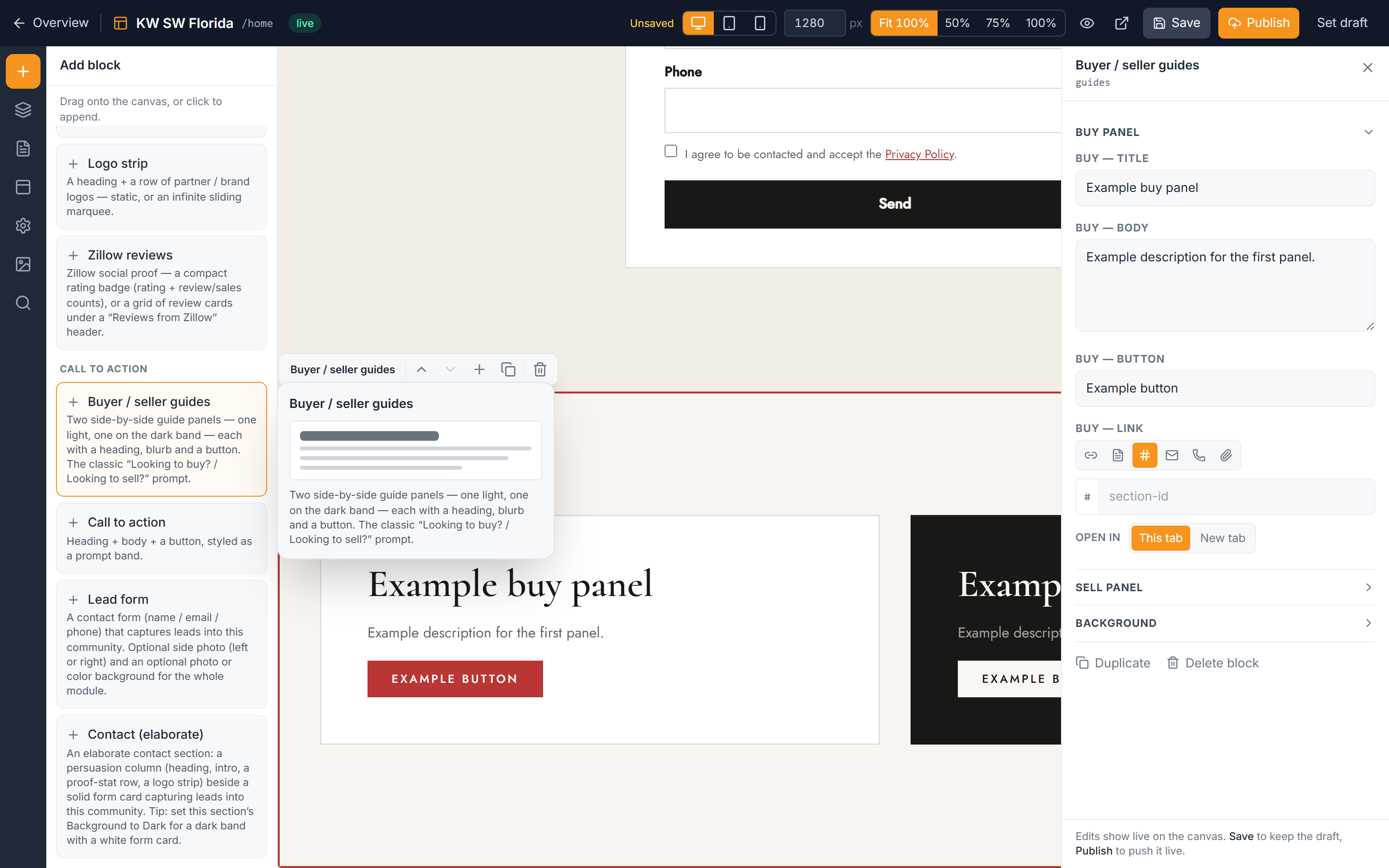
Add a call-to-action band
- Open the website editor and click the spot on the canvas where you want the band to sit.
- In the left rail, click Add, then open the Call to action group.
- Choose Call to action to drop the band onto the page.
- Select the block and use the right inspector to set the heading, the body text, and the button label and link.
- When it looks right, click Publish to push the change to your live site.
Add buyer / seller guides
- In the left rail, click Add, then open the Call to action group.
- Choose Buyer / seller guides to add the two-panel block.
- Select the block and edit each panel in the inspector — give the light panel and the dark panel their own heading, blurb, and button.
- Point each button at the right destination (for example, a buyer guide page and a seller guide page, or two different forms).
- Click Publish when you're happy with both panels.
For details on editing text and button links inside any block, see editing block content and styling your buttons.
When to use which
- Reach for the Call to action band when you want one clear next step at the bottom of a page or between two long sections.
- Reach for Buyer / seller guides when your audience splits into two paths and you want to serve both at once.
- If your goal is to actually collect contact details on the page rather than send visitors elsewhere, add a lead form instead of (or alongside) a CTA button.
Troubleshooting
The band's button doesn't go anywhere
Select the block and check the button's link in the inspector. An empty link field leaves the button inactive — paste the full destination address or pick a page, then Publish again.
The buyer / seller panels look the same
That's expected — one panel is light and one is dark by design, so each stands out. If both look identical, you may have edited the same panel twice; click each panel separately and confirm you gave them different headings and links.
My changes aren't on the live site
Edits in the editor stay as a draft until you push them out. Click Publish to send the current version to your public site, then refresh the public page in a new tab.