
How the website builder works: sites, pages, and blocks
The website builder lets you create and run your community's own public marketing website — the site the world sees when they want to learn about your community — without touching code or hiring a designer. If you have ever used Squarespace, Webflow, or a similar page builder, this will feel familiar: you assemble each page from a library of ready-made sections, drop in your words and images, and publish. This article is the orientation — what the builder is, the handful of words worth knowing, and who is allowed to edit it. When you're ready to actually open it and start building, the how-to articles pick up from here.
What it is (and what it isn't)
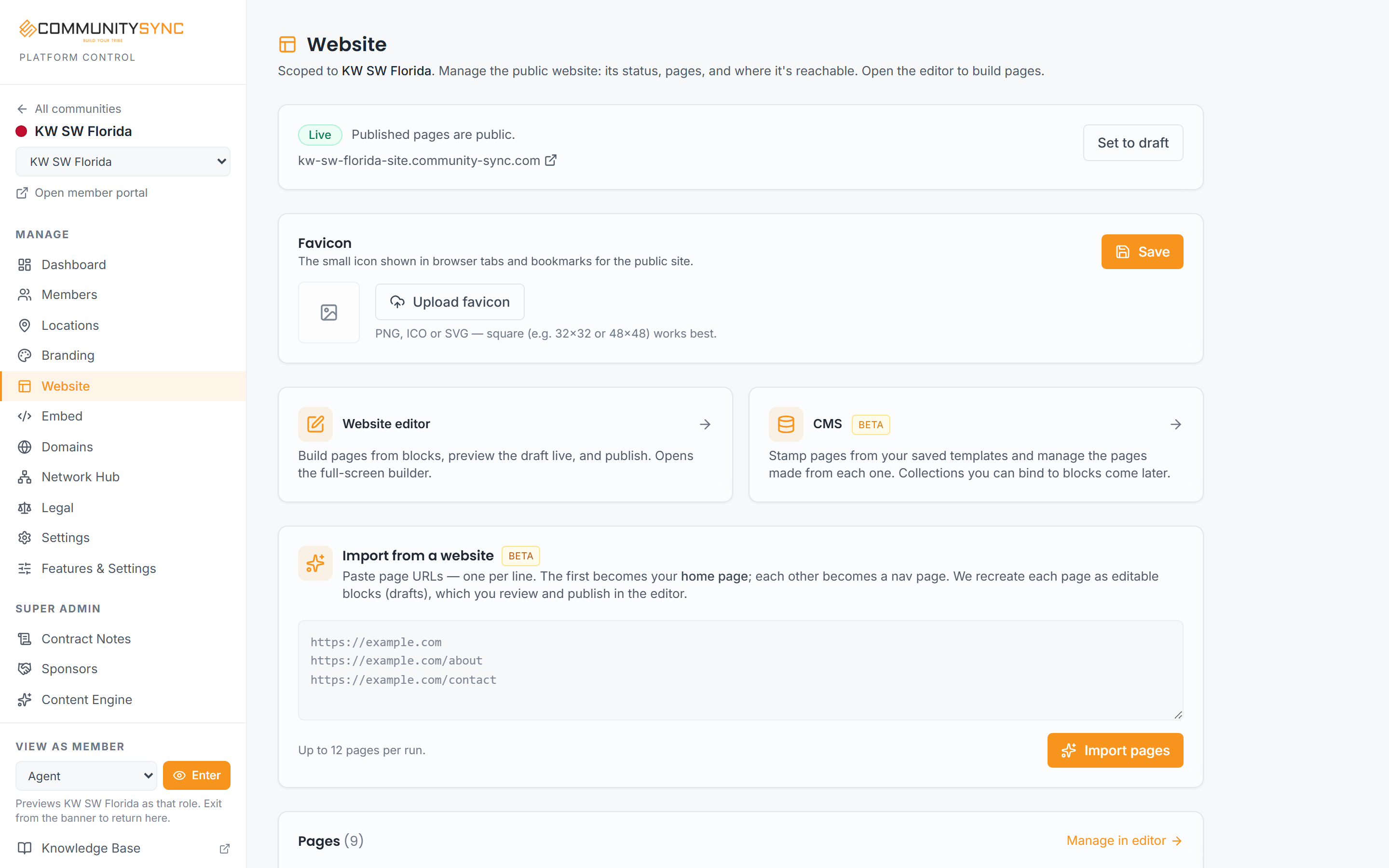
Your community website is a real, standalone marketing site published at your community's public "-site" address (for example, your-slug-site.mycommunitysync.com). That's a different address from your member portal (your-slug.mycommunitysync.com), where your members sign in. One is the front door for the public; the other is the app your members use.

Two things people often confuse it with, so it's worth drawing the line clearly:
- It is not the CommunitySync marketing homepage. That's our own site, about the CommunitySync product, and only our team can edit it. Your community website is entirely yours.
- It is not the AI content engine. The content engine helps generate written material; the website builder is where you lay out and publish pages. They're separate tools with separate jobs.
There's no long "build and deploy" wait. When you publish, your changes go live on your public site within a few minutes.
The words worth knowing
A few plain definitions will make everything else click:
- Site — your community's whole website: all its pages, its shared header and footer, and its look. You have one site per community.
- Page — a single page on that site, like your home page, an About page, or a Contact page.
- Block — a ready-made section you drop onto a page: a hero banner, a row of features, a photo gallery, a lead form, and so on. There are around 40 to choose from. You build a page by stacking blocks and filling in their content — no design work required.
- Chrome — the shared navigation bar at the top and the footer at the bottom that appear on every page. You set these once and they stay consistent site-wide.
- Theme / preset — the overall look: fonts, colors, spacing. A preset is a ready-made starting style you can apply and then fine-tune.
- Template and entry — used for collections like a blog. A template is the reusable layout; an entry is one item (one blog post, one resource) that fills that layout. This is what the CMS handles (more below).
- Draft vs published — a draft is your work-in-progress that only you can see in preview; publishing is what pushes it live to the public.
The three places you'll work
The builder is really three connected surfaces. Knowing which is which saves a lot of hunting:
- The Website overview — the dashboard for your site. Here you see whether your site is live, copy its public URL, set your favicon, manage redirects and your custom domain pointer, and find the danger zone with backups. Think of it as the control panel, not the design canvas.
- The editor — the full-screen, three-pane builder where you actually construct pages. A dark bar runs across the top; a slim icon rail on the left switches between Add, Navigator, Pages, Nav & footer, Site settings, Assets, and SEO; your page previews live in the center canvas; and the right-hand inspector is where you edit whatever block you've selected.
- The CMS — where collections live. When you run something repeating, like a blog or a resource center, the CMS holds the entries and pours them into a template so every post looks consistent without rebuilding the layout each time.
You'll spend most of your time in the editor. The overview is where you go to check status or handle domain and backup housekeeping; the CMS is for content collections.
Who can edit it
Editing the website builder is limited to community owners and admins, working inside the orange platform panel. Community managers and agents cannot edit the site, and there is no member-facing website editor — your members use the portal, not the builder. (Separately, the CommunitySync marketing homepage is edited only by our own super-admin team.)
Where to go next
- To open the editor and get your bearings in the three panes, see Open the website editor.
- To start building your first pages from scratch, see Create your community website.
Troubleshooting
I can't find the website builder in my panel
The builder lives in the orange platform panel and is available only to community owners and admins. If you're a manager or agent, you won't see it — that's expected. Ask an owner or admin on your team to make the edits or adjust your role.
My site address and my member portal address are different
That's correct. Your public website is at the -site address (your-slug-site.mycommunitysync.com), while your members sign in at your-slug.mycommunitysync.com. They're two separate things: the public front door versus the member app.
I published but don't see my changes yet
Publishing takes a few minutes to reach the live site. Give it a short wait and refresh. If it still looks stale, confirm you actually published rather than only saving a draft — a draft stays private to your preview until you publish it.