
Add, rename, and organize pages
Your website is made of pages — a home page, an about page, a contact page, and whatever else you add. The Pages panel is where you create those pages, give them names, make copies, and clean up the ones you no longer need. This is a job for community owners and admins; managers and agents can't edit the site.
Open the Pages panel
- Open the website editor for your community (see Open the website editor).
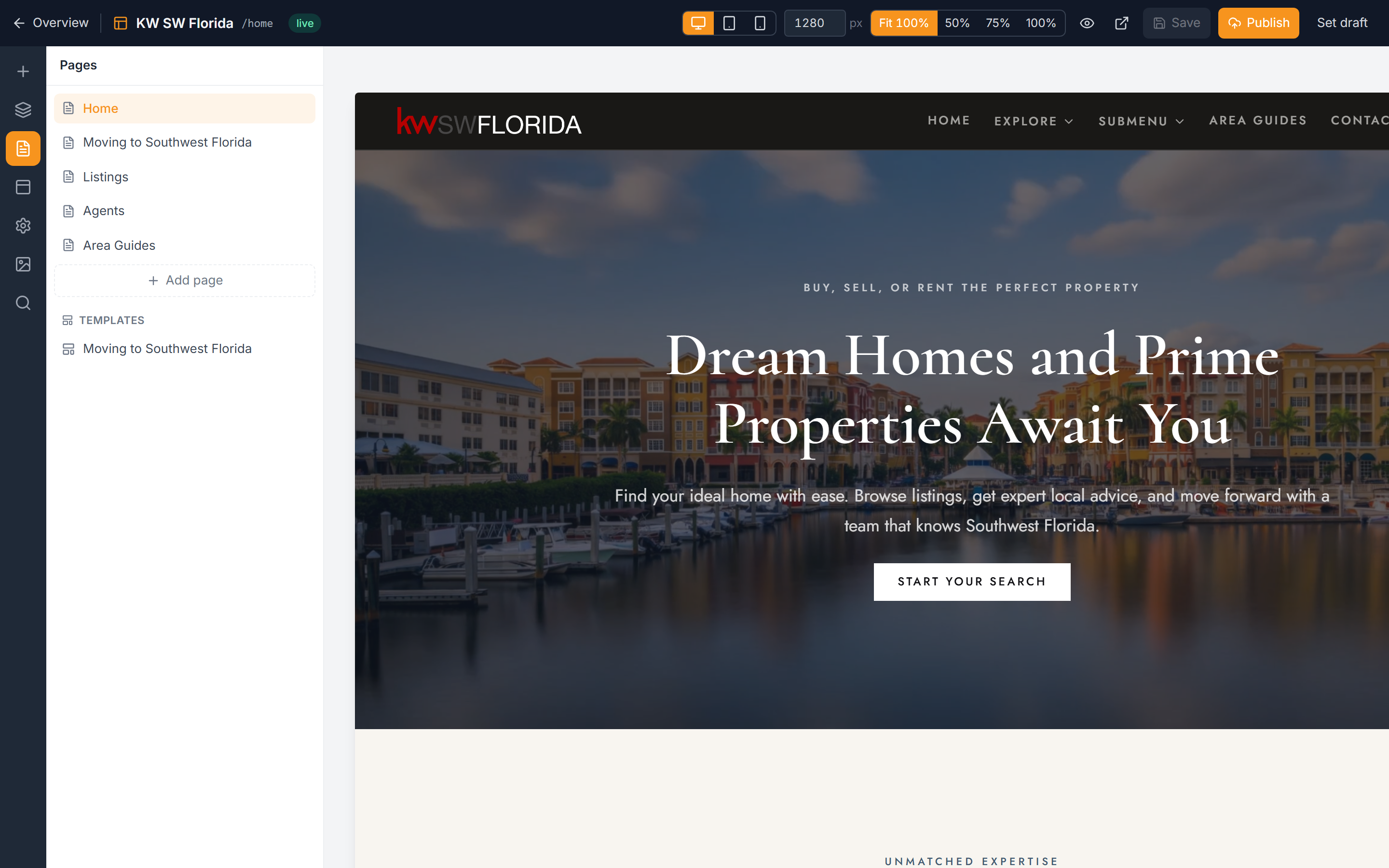
- In the left icon rail, click Pages. The panel lists every page on your site.
- Your real pages are listed first. If you've saved any page templates, they appear in their own group below (see Page templates).
Add a page
- In the Pages panel, click Add page.
- Give the page a title.
- Choose how to start it:
- Blank — an empty page you build from scratch.
- From template — if you have templates saved, start from one so the new page already has a layout.
- The new page opens on the canvas, ready for you to add blocks (see Add and arrange blocks).
Rename a page
- In the Pages panel, click the pencil icon next to the page — or double-click the page name.
- Type the new title and confirm.
Renaming changes only the page's display title — the name your visitors and menus see. It does not change the page's web address. That's on purpose: keeping the address the same means existing links and menu items keep working after a rename.
Duplicate a page
- In the Pages panel, find the page you want to copy.
- Choose Duplicate.
- A copy is created as a Draft. Rename it and edit it like any other page — the original is untouched.
Duplicating is the quickest way to reuse a layout you've already built without starting over.
Delete a page
- In the Pages panel, find the page you want to remove.
- Choose Delete and confirm when asked.
You can't delete the last remaining page — a site must always have at least one page.
Reorder pages and choose your menu
The Pages panel is for creating and managing pages. To change the ORDER pages appear in your navigation, and to choose which pages show in the menu at all, use the Nav & footer tab instead (see Set up site navigation). A page can exist on your site without being in the menu.
Troubleshooting
I renamed a page but its web address didn't change
That's expected. Renaming updates the page's display title only — its web address stays the same so existing links and menu items don't break. There's no way to change a page's web address yet; if you need a different address, the current option is to build a new page and point your menu at it.