
Reuse a layout with page templates
A page template is a reusable layout you build once and stamp out over and over — so every service page, every case study, every blog post shares the same structure without you rebuilding it by hand. Templates live in their own group in the editor, never show up publicly, and never appear in your navigation. Only community owners and admins can create and edit them, working inside the full-screen website editor.
Save a page as a template
You start from a page you've already built, then turn its layout into a template.
- Open the website editor and click the Pages icon in the left rail.
- Hover over the page whose layout you want to reuse.
- Choose Save as template.
This makes a copy as a template. It never converts or touches your live page — the original stays exactly as it is, still public, still in your nav. The new template drops into its own template group in the Pages panel, separate from your live pages. Templates are never visible to the public and never appear in your site navigation.
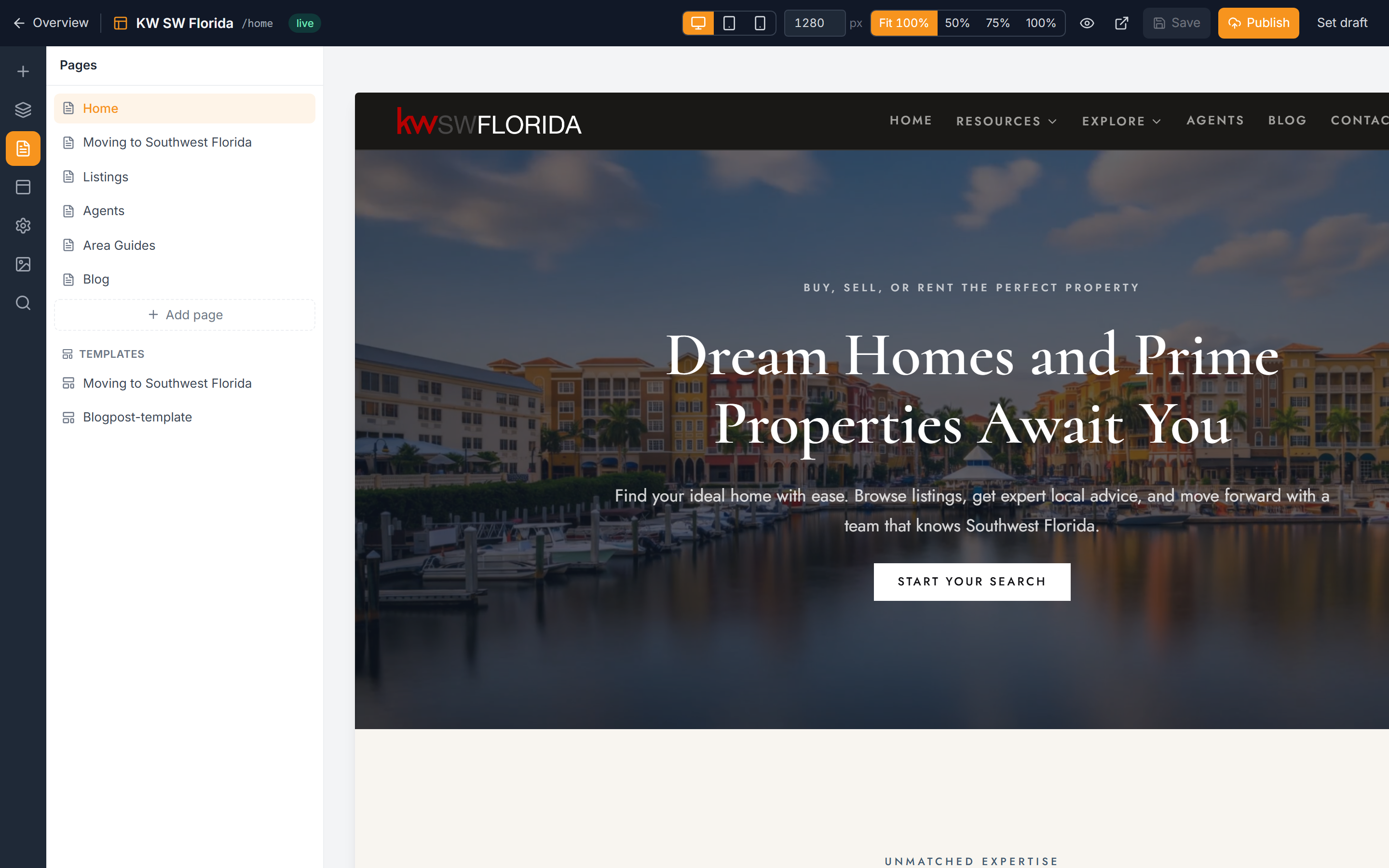
Two ways a template gets used
Once you have a template, there are two very different ways to build pages from it. The difference is whether future edits to the template flow through — so choose based on how you want it to behave.
A detached one-off copy
- In the Pages panel, choose Add page.
- Pick From template and select your template.
This stamps a detached copy. It's a snapshot of the layout at that moment. Later edits to the template do not flow into this page — it's yours to change freely and independently. Use this for a one-time page that happens to start from a familiar layout.
A live-bound CMS entry
When a template is paired with a CMS collection, each entry in that collection is live-bound to the template. Edit the template layout and the change flows to every entry at once. This is how you keep a whole set of pages — all your blog posts, all your case studies — visually consistent from one edit. See Content collections explained to set up collections and entries.
The short version: From template gives you an independent copy, a CMS entry stays tied to the template forever.
Edit and publish a template
Editing a template works like editing any page, with one label change to notice.
- Open the template from the Pages panel.
- Add, arrange, and edit blocks on the canvas as usual.
- When you're ready to push your changes out, click Publish layout in the top bar.
Because CMS entries are live-bound, publishing a layout updates every entry built from it. Detached copies made earlier are unaffected.
Preview the template with real content
An empty template is hard to judge — you can't tell if the layout holds up until real words and images are in it. The template preview fills the canvas with a real bound entry's content so you can see the finished result.
- Open the template.
- Use the content picker in the top bar to load a bound entry into the canvas.
- Step through entries with the ◀ and ▶ buttons to see how different content sits in the layout.
- Click the ⚡ button to jump straight to the longest entry — a quick way to stress-test the layout against your most demanding content.
The previewed content is read-only. You're viewing how a real entry renders, not editing that entry — your edits stay on the template's layout itself.
Troubleshooting
Saving as a template changed my live page
It shouldn't — Save as template always makes a copy and never converts your live page. Check the Pages panel: your original page is still in the live group, and a new item now sits in the template group. Edit the template, not the original.
My template edits aren't showing on a page
First, make sure you clicked Publish layout after your edit. Saving only keeps a draft — the editor preview shows that draft, but live pages and bound entries keep rendering the last published layout until you publish. A block you just added (say a "recent posts" band at the bottom of a blog-post template) won't appear on a live entry until the layout is published; once it is, it appears on every bound entry at once.
If you've published the layout and a specific page still hasn't changed, that page is probably a detached copy made with Add page > From template — those don't receive later template edits. Only live-bound CMS entries update when you Publish layout. If you need that page to track the template, rebuild it as a CMS entry (see Content collections explained).
I don't see the content picker on my template
The preview picker only appears when the template has CMS entries bound to it. Set up a collection and add at least one entry first (see Content collections explained), then reopen the template.
My template isn't showing up on the live site
That's expected. Templates never appear publicly and never show in your navigation — they exist only to stamp out pages and entries. The pages built from them are what go live.