
Content collections explained (templates & entries)
Blogs, help centers, and case study libraries all work the same way under the hood in your website builder: one reusable layout, filled with many items. Once you understand that split, adding a new blog post or case study is quick — you write the words, and the design takes care of itself. This article explains the mental model so the how-to articles make sense.
Templates and entries
A content collection has two parts that work together:
- Template — a reusable page layout you design once. It defines the structure and styling every item in the collection shares: the header, the way the body renders, the surrounding blocks.
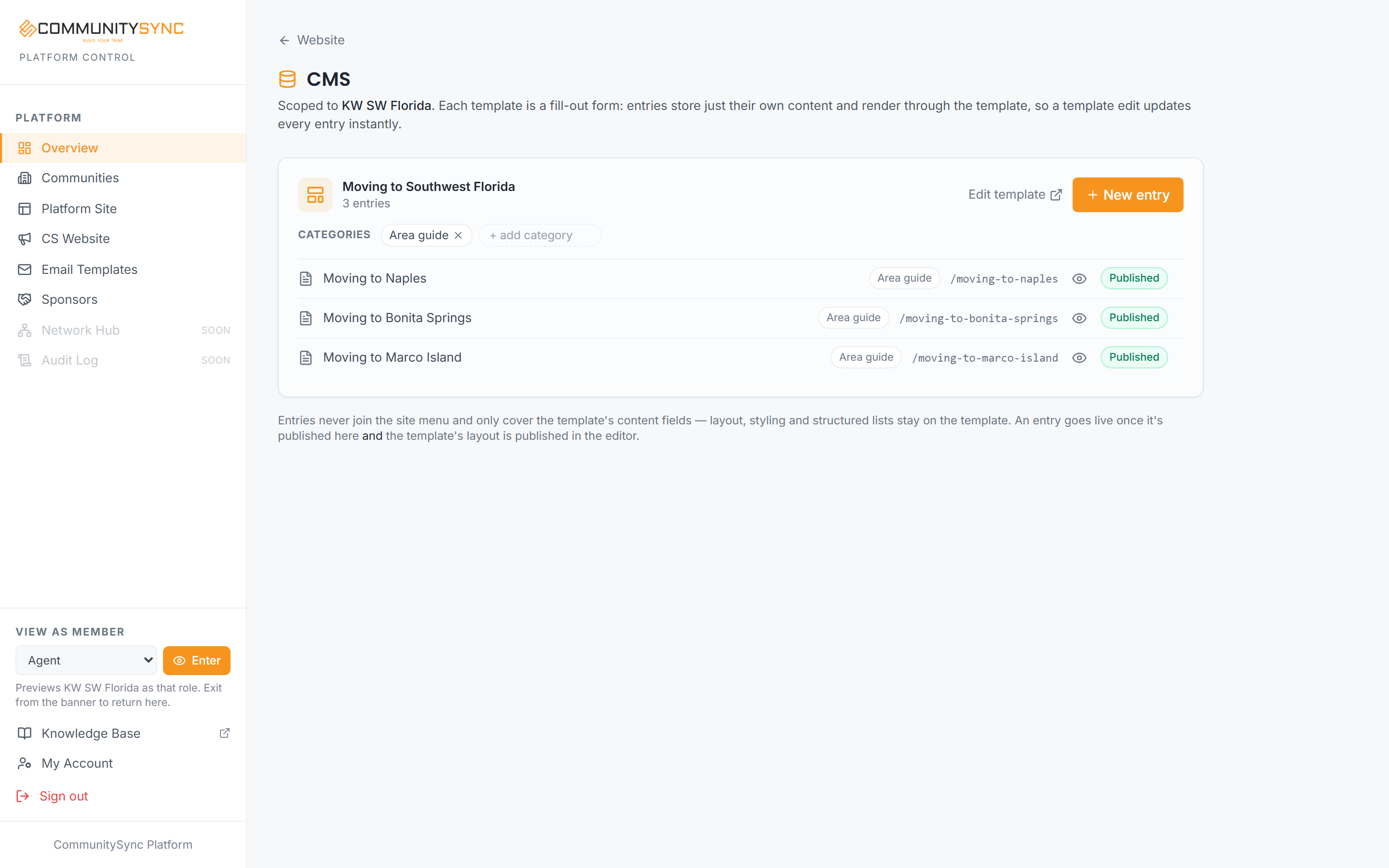
- Entries — the individual items that render through that template: your blog posts, case studies, or help articles. Each entry stores only its own content (its title, body, and a few overrides) and borrows the layout from the template live.
Because an entry inherits the layout instead of copying it, editing the template updates every entry at once. Change the header on a blog template and all your posts get the new header — you don't touch each post one by one. This is the whole point of a collection: consistent design, low upkeep.
What templates do and don't do
A few rules keep collections predictable:
- A template never serves publicly on its own. Visitors only ever see entries; the template is the mold, not a page anyone lands on.
- A template never appears in your site navigation. You add the collection to a page with a block (below), not by linking to the template.
- An entry is nothing without its template. It holds content overrides and leans on the layout for everything else.
Categories
A template can declare a roster of categories — the sections a collection is organized into, like blog topics or resource types. Each entry then picks one category from that roster. Categories let you group and filter entries when you list them, so visitors can browse "Market updates" separately from "Buyer guides," for example. You define the roster on the template; you assign a category per entry.
Showing a collection on a page
Templates and entries live in the CMS, but a visitor sees them only when you place the collection on an actual page. You do that with the Entry list block: drop it onto a page in the editor, point it at your collection, and it renders your entries as a browsable list. That's the bridge between your content library and your live site.
Where to manage this
Collections are managed in the CMS at /platform/website/cms inside the orange platform panel. Only community owners and admins can edit it — community managers and agents cannot. The CMS is separate from the full-screen website editor: the editor is where you design pages and drop in the Entry list block, and the CMS is where the templates and entries themselves live.
Getting started
The typical path to a working collection is three moves:
- Design a page in the website editor the way you want every item in the collection to look — header, body area, and any surrounding blocks. See Reuse a layout with page templates for how templating works.
- Use Save as template to turn that page into the reusable layout for the collection.
- Add your entries in the CMS at /platform/website/cms, each one filling the template with its own content. See Add and edit entries in a collection for the entry workflow.
From there, the concept applies to whatever you're building: a blog collection for posts, or a resource center collection for guides and help articles. Same template-and-entries model, different content.
Troubleshooting
My entries all look the same and I want to change their layout
That's the collection working as designed — entries share the template's layout. Edit the template once and every entry updates together. Don't try to restyle each entry individually; change the template.
My collection isn't showing up on the site
Templates never serve publicly on their own and never appear in the nav. To display the collection, open the page in the website editor and add an Entry list block pointed at your collection. Without that block, visitors have no way to reach the entries.
I can't find the CMS
It lives at /platform/website/cms in the orange platform panel, and only owners and admins can open it. If you're a community manager or agent, you won't have access to edit collections.