
Build a help or resource center
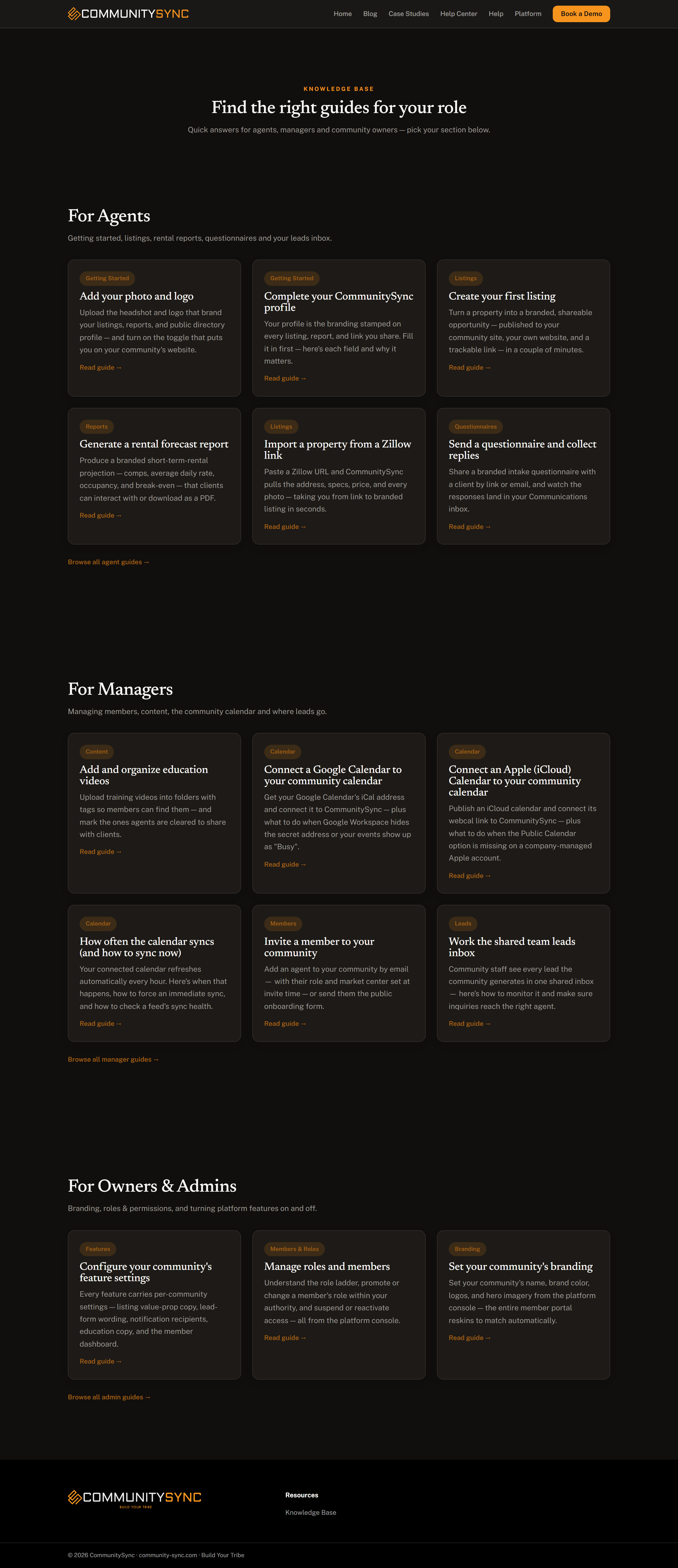
A resource center is a single page that lists all your guides, help articles, or resources as browsable cards, grouped so visitors can find what they need fast. You build it with the Entry list block, which pulls entries straight from a CMS collection and lays them out on the page. This article assumes you already have a collection and some entries in place — if not, start with CMS collections overview and Manage CMS entries.
Only community owners and admins can edit the website, and this all happens inside the orange platform panel's full-screen editor.
Add the Entry list block
- Open the page where you want your resource center in the website Editor.
- In the left icon rail, open Add and drop in an Entry list block where you want the cards to appear.
- With the block selected, open the right inspector to set it up.
Point the block at a collection
- In the inspector, set Template to the collection you want to show — for example your Guides, Help, or Resources collection. The block will now pull its cards from that collection's entries.
- Decide how much to show:
- To show one topic only, choose a single Category. The block lists only entries in that category.
- To build a full pillar page, leave Category empty and turn on Group by category. Every category becomes its own titled band, with its entries as cards underneath — a clean, browsable index of everything.
Style the cards
Use the remaining inspector settings to shape how the list looks:
- Pick a card style:
- Text — compact cards, best for help articles and quick guides.
- Blog — larger cards with an image and date, best for a magazine-style resource feed.
- Set the Sort order — A-Z for a stable reference index, or Newest to surface fresh content first.
- Set a Limit if you want to cap how many cards appear.
- Set the card link label — the text on each card that takes visitors to the full entry (for example "Read guide" or "Learn more").
Build the article pages
The Entry list gets visitors to your content — the Article block presents each piece once they arrive. Add an Article block to the page template your entries render through, and it does two helpful things automatically:
- It builds an On this page table of contents from the `##` headings in the entry, so long guides are easy to scan.
- It links to sibling articles in the same category, so readers can move from one guide to the next without going back.
To let visitors deep-link to a specific section, give that section an Anchor id. The section then has its own shareable link you can point people to directly.
Troubleshooting
My cards aren't showing up
Confirm the Template in the Entry list inspector points at the right collection, and that the collection actually has published entries. An empty or wrong collection shows no cards. See Manage CMS entries.
Every entry is in one big list instead of grouped
To get titled bands per topic, leave Category empty and turn on Group by category. If you've selected a single Category instead, the block only shows that one topic as a flat list.
The table of contents is empty
The On this page list is built from the `##` headings inside each entry. If an article has no `##` section headings, there's nothing to list — add headings to structure the article.