
Style the buttons on your site
Buttons are how visitors move through your site, so they need to stand out and stay readable on every section. In the editor you control two things per button — its colour and its style — and getting them right keeps your calls-to-action clear against any background.
Who can style buttons
Buttons are edited by community owners and admins inside the orange platform panel, in the full-screen website editor. Community managers and agents cannot edit the site.
Set a button's colour and style
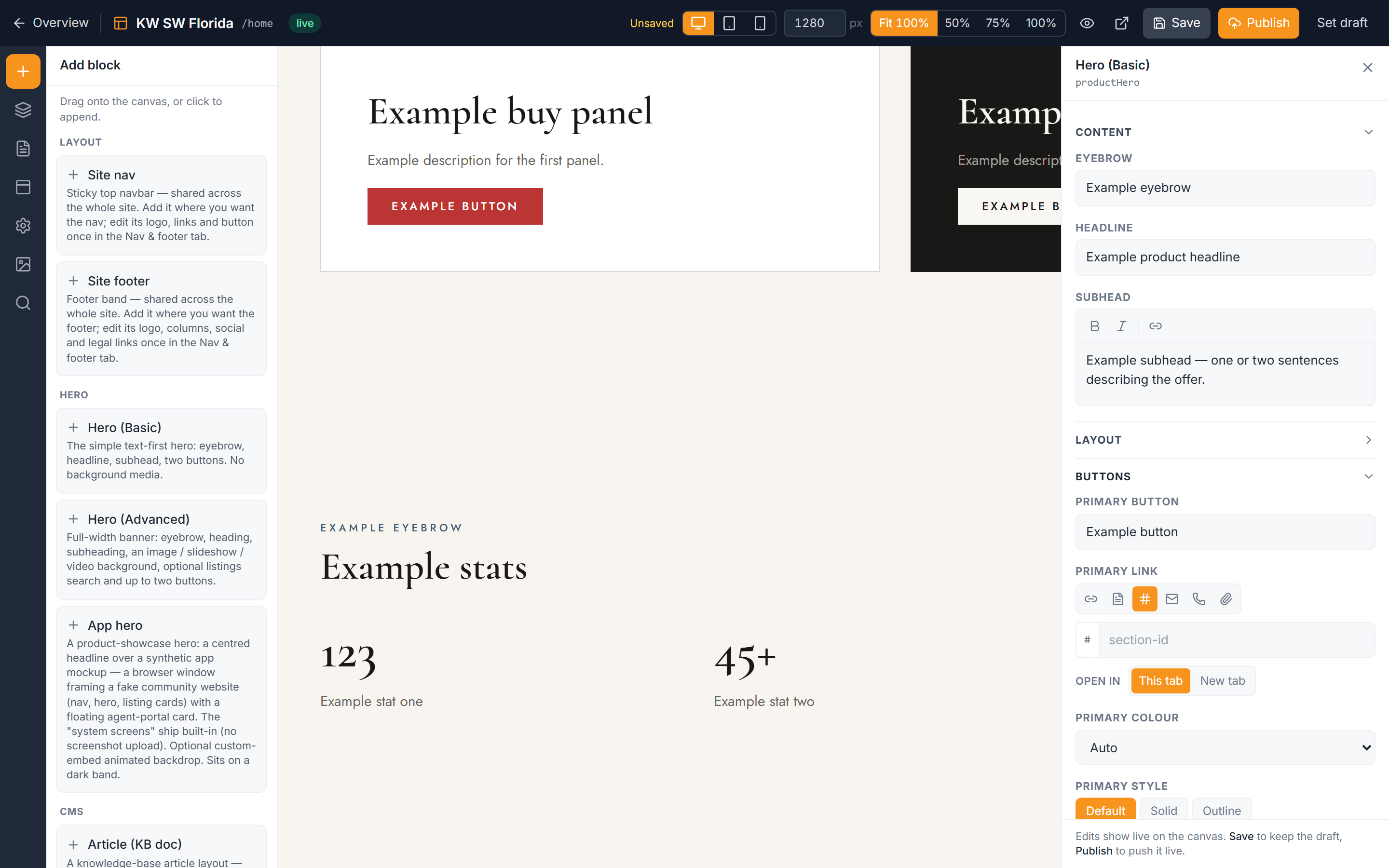
Blocks that include a button — heroes, calls-to-action, and similar — expose the button's settings in the right-hand inspector when the block is selected.
- Open the website editor and click the block whose button you want to change.
- In the inspector on the right, find the button's Colour setting. Your options are:
- Auto — surface-aware; it adapts to the section's background and adds no extra tint. This is the recommended default.
- Brand — your community's brand colour.
- Black, White, or Brand-dark — fixed colours that always render the same regardless of the background.
- Choose the button's Style:
- Default — the theme's standard button treatment.
- Solid — a filled button.
- Outline — a bordered button with no fill.
- Your change previews live on the canvas.
Why "Auto" is the safe choice
Leave Colour on Auto whenever you can. Because it reads the section's background, an Auto button stays readable no matter which band it sits on — light or dark. A fixed White or Black button can disappear on the wrong background (a white button on a white band shows nothing at all). Only reach for a fixed colour when you specifically want that exact shade and you know the background it will sit against.
Button readability is tied to the section's background, so it helps to understand how bands work. See Section backgrounds for how each section's fill is set.
Troubleshooting
My button seems to have vanished
You've almost certainly set Colour to White on a light background (or Black on a dark one), so the button blends into the band. Switch Colour back to Auto, or pick a colour that contrasts with that section's background.
The button colour looks wrong on one section but fine on another
A fixed colour renders the same everywhere, so it can clash with some bands and suit others. Set that button's Colour to Auto so it adapts per section, or change the section's background — see Section backgrounds.