
Fine-tune fonts, corners, and spacing
Your theme sets the overall look of your site, but you can still fine-tune the details. The Style section gives you eight small controls — fonts, corner shapes, spacing, and more — that layer on top of your chosen theme so you can tailor the feel without redesigning anything. Only community owners and admins can edit these settings, from inside the orange platform panel.
Where the style controls live
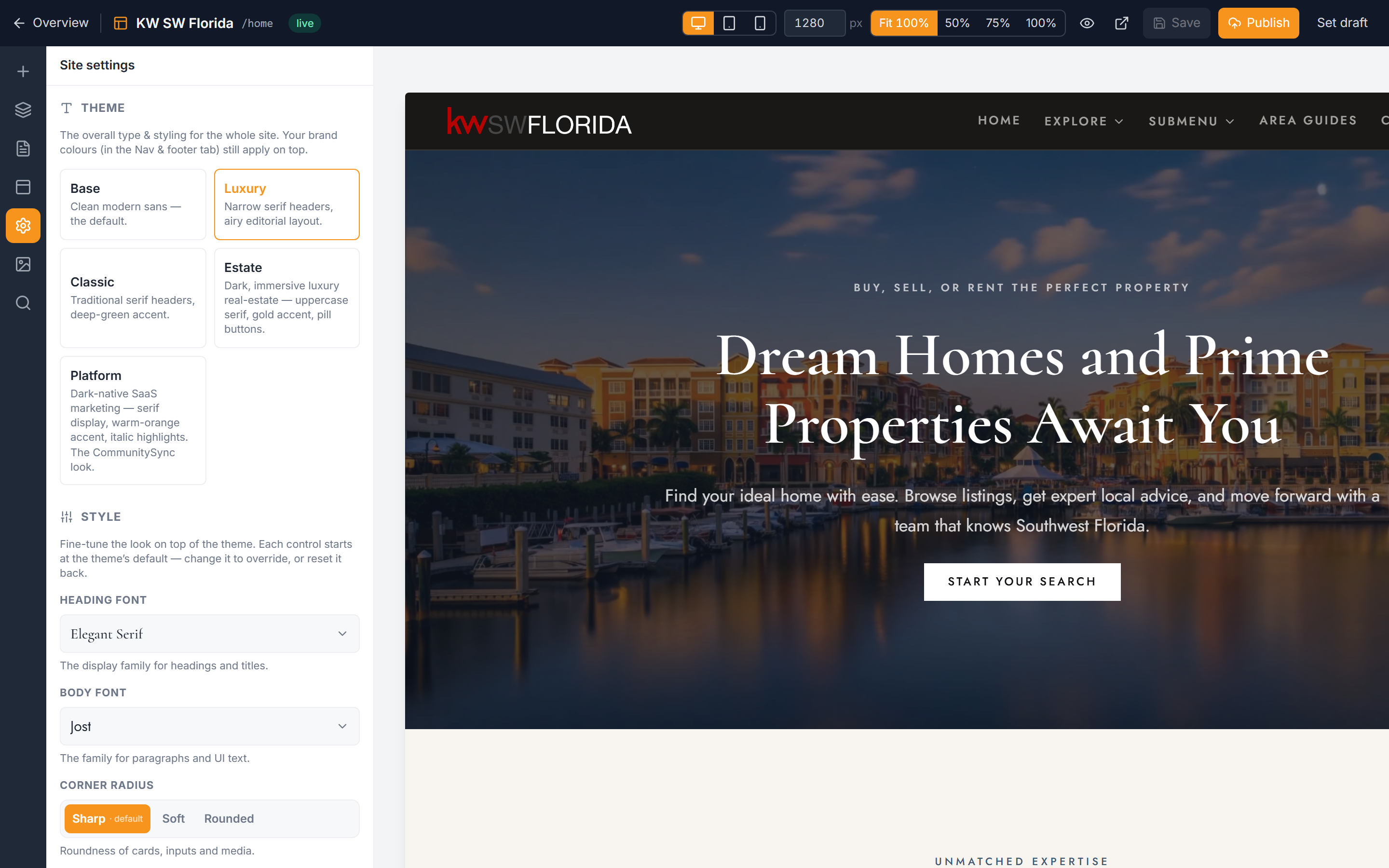
The Style controls sit inside the website editor, just below the theme picker. If you haven't picked a theme yet, start with Choose a theme — the theme is the foundation, and these knobs adjust it.
- Open the full-screen website editor.
- In the left icon rail, click Site settings.
- Scroll to the Style section, below the theme picker.
Each of the eight knobs starts on your theme's default. You only need to touch the ones you want to change.
The eight style knobs
- Heading font — the typeface used for titles and headings. Options preview in their own typeface, so you can see each font before choosing it.
- Body font — the typeface used for paragraphs and general text. Also previews in its own typeface.
- Corner radius — how rounded the corners are on cards and panels: Sharp, Soft, or Rounded.
- Card elevation — how much cards lift off the page: Flat, Soft, or Elevated.
- Button shape — the outline of your buttons: Square, Rounded, or Pill.
- Label case — how small labels and eyebrows are cased: Uppercase or Sentence.
- Section spacing — the vertical breathing room between sections: Compact, Comfortable, or Airy.
- Content width — how wide your content sits on the page: Narrow, Standard, or Wide.
Change a style knob
- In Site settings, find the Style section.
- Click the option you want for any knob (for fonts, pick from the previewed list).
- Repeat for any other knobs you want to adjust.
- Click Save. Your changes apply live to the site immediately.
Reset a knob to the theme default
Every knob has a Reset link that returns it to your theme's default value.
- Find the knob you want to undo.
- Click its Reset link.
- Click Save.
How overrides and themes work together
CommunitySync only saves the knobs you actually change. Anything you leave alone stays tied to the theme itself. That has one useful consequence:
- If you later switch themes, every knob you never overrode picks up the new theme's default automatically.
- Any knob you did override keeps your chosen value, no matter which theme you switch to.
So if you want a knob to always follow your theme, leave it untouched (or use Reset). If you want it locked to a specific choice, set it explicitly.
Troubleshooting
My font choice didn't appear on the site
Make sure you clicked Save after picking the font — style changes only apply once saved. The fonts in the picker preview in their own typeface, so what you see in the list is what you'll get on the page.
Switching themes changed my fonts and spacing
That's expected for any knob you never overrode. Unchanged knobs follow the theme, so a new theme brings its own defaults. To keep a value fixed across theme changes, set that knob explicitly instead of leaving it on the default.
I want to go back to how it looked before
Use the Reset link on each knob to return it to the theme default, then click Save. Reset works one knob at a time, so you can undo just the changes you don't want.