
Choose a theme for your website
A theme sets the overall personality of your whole website in one click — the fonts, the corners, the spacing, and which sections lean dark or light. Starting from a theme that already feels right means less fiddling later, so it's the first design choice worth making before you start fine-tuning individual sections.
Only community owners and admins can change the theme, working inside the orange platform panel's full-screen website editor. Community managers and agents cannot edit the website.
Pick a theme
- Open your community website in the full-screen editor.
- In the left icon rail, click Site settings.
- Find the Theme picker and click one of the five preset cards. The canvas restyles live so you can see the result immediately.
- The change applies when you Save.
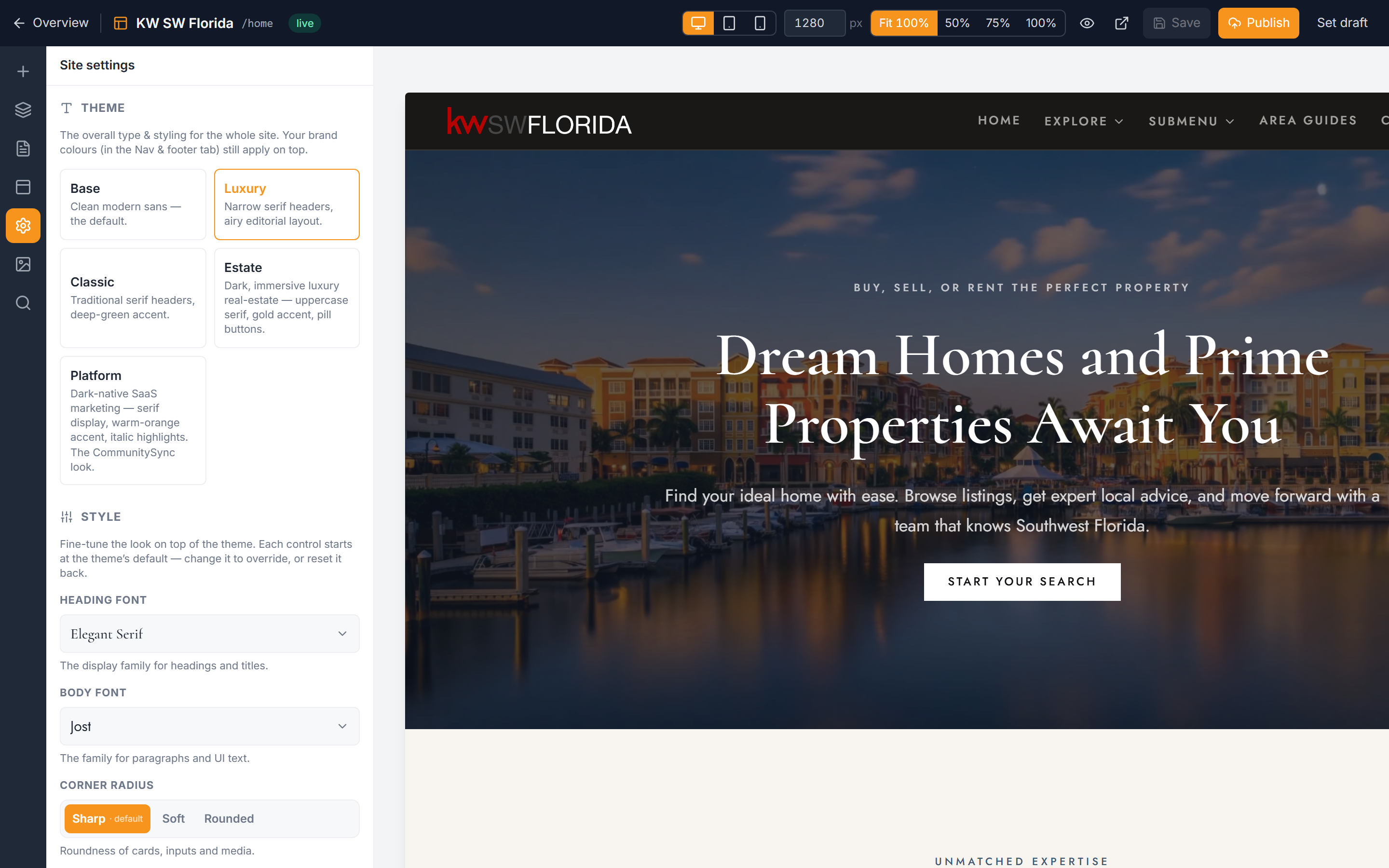
The five themes
- Base — a clean, modern sans-serif look. This is the default and the safest starting point for most communities.
- Luxury — a narrow serif with an airy, editorial feel; good for a high-end, magazine-style site.
- Classic — a traditional serif with a deep-green accent; understated and timeless.
- Estate — a dark, immersive luxury real-estate look with an uppercase serif, gold accent, and pill-shaped buttons.
- Platform — a dark-native, SaaS-style marketing look for a modern tech-forward feel.
What a theme changes
Switching themes does more than swap fonts. Each preset also sets its own default corner rounding, spacing, and which sections start out dark versus light. That means picking a new theme can change several things across your site at once — so it's normal for a page to look quite different after you switch. Choose your theme first, then refine from there.
Your brand colors always apply on top of the theme. The theme decides the typography and layout feel; your colors stamp your identity over it. Set those in Set your site brand colors, and adjust fonts, corners, and spacing further in Fine-tune your website style.
Troubleshooting
My site looks very different after switching themes
That's expected. A theme resets fonts, corners, spacing, and light/dark section defaults all at once, so the whole site can shift. Pick the theme that's closest to what you want first, then fine-tune the details.
The theme change didn't stick
The canvas previews live, but the change only becomes permanent when you Save. Make sure you saved after clicking the preset card.
My brand colors disappeared
Your brand colors still apply on top of any theme. If they look off after switching, check your color settings in Set your site brand colors — the theme may present them against a different light or dark background.