
Optimize a page for search (SEO title, description, social image)
Every page on your website can carry its own search title, description, and social share image — the exact things Google shows in results and that appear as a preview card when someone pastes your link into a message or a post. Setting them well is the difference between a page that gets clicked and one that gets scrolled past. This is done page by page in the website editor, and only community owners and admins can do it.
Open the SEO panel
- Open the full-screen website editor. If you're not sure how, see Open the website editor.
- In the left icon rail, click the SEO tab.
- Select the page you want to optimize. Each page has its own SEO settings — they are not shared across the site.
As you edit, a live Google preview updates in real time so you can see roughly how the page will look in search results while you type.
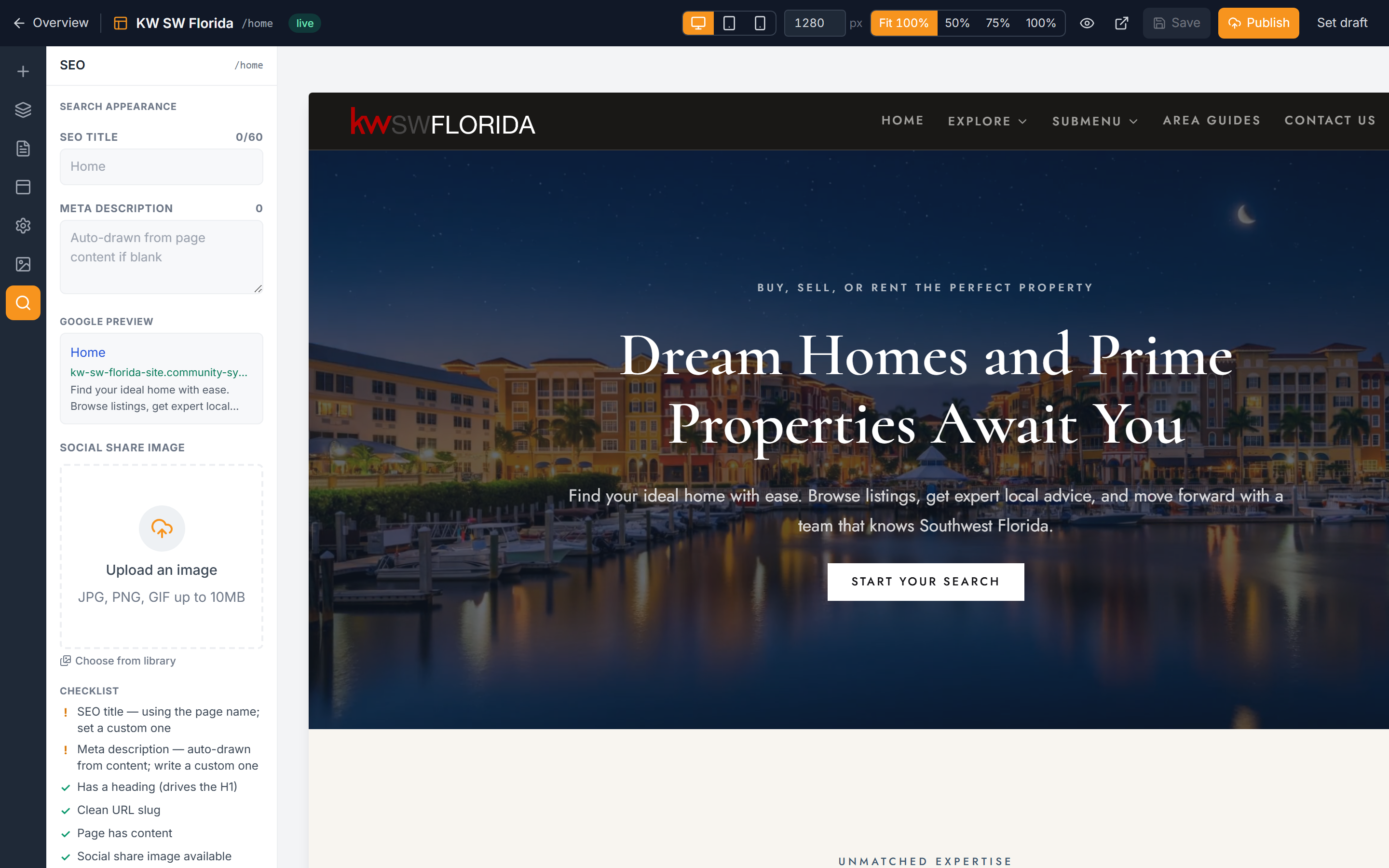
Write a search title
The SEO title is the clickable headline Google shows for your page. It's also the text browsers show in the page's tab, so it's the most visible label your site has.
- Enter a title in the SEO title field.
- Aim for under 60 characters. A counter warns you when you go over — longer titles get cut off in search results.
- Lead with the words people would actually search for, and put your community or brand name toward the end.
Leave it blank to use the page name. If you clear the SEO title field, the page automatically falls back to its own name (for example, "Home" or "Listings"). Only fill this in when you want a title different from the page name.
Write a meta description
The meta description is the short blurb under the title in search results.
- Enter a summary in the Meta description field.
- Aim for 50 to 160 characters — long enough to be useful, short enough not to be truncated.
- If you leave it blank, it's automatically drawn from the page's own copy. Writing your own gives you more control over the pitch.
Choose a social share image
The social share image is the picture that appears when your page link is shared on social platforms or in messaging apps.
- In the Social share image field, choose an image.
- Pick something clear and on-brand — this is the first impression when your link is shared, and a blank card looks unfinished.
Follow the checklist
Below the fields, a checklist scores the page and tells you what's still missing. It looks at:
- Title length
- Description length
- A main heading on the page
- A clean page URL
- Actual page content
- A social share image
- A call-to-action
Work down the list until each item is satisfied — it's the fastest way to know a page is ready.
Save your changes
- Click Save.
- SEO settings save together with the page's theme and go live as soon as you save.
What happens automatically
You don't have to hand-build the technical parts — every page automatically emits the search and social markup and the structured data that Google and social platforms read. A few things worth knowing:
- Your /privacy and /terms pages are generated from your community's legal copy unless you publish your own versions. Either way, search engines can find them.
- Add your social links to your site footer. When you do, search engines recognize and associate those profiles with your site. See Build your footer for where to set them.
- Give every image good alt text — it helps both accessibility and search. See Image alt text.
Troubleshooting
My page isn't showing up in Google
On staging, the site is deliberately hidden from search engines, so pages won't appear in real search results yet. Use the live Google preview in the SEO panel to check how a page will look once the site is public.
The checklist still shows items as incomplete
Each item points to something specific — a missing main heading, thin page content, no social image, or no call-to-action. Fix the flagged item on the page itself, then return to the SEO tab; the checklist re-scores as you go.
My description isn't the text I wrote
If the Meta description field is blank, the description is auto-drawn from the page's copy. Type your own description into the field and click Save to override it.
My browser tab shows an old or wrong title
The SEO title is also what browsers display in the page's tab. If a tab (or a search result) shows a name you don't expect — an old draft, or a name carried over when the page was copied from a template — that page has a custom SEO title set. Open the SEO tab, select that specific page, and edit the SEO title field (or clear it to fall back to the page name), then click Save. Because SEO is set per page, check the exact page whose tab looks wrong — fixing one page doesn't change the others.
My changes didn't take effect
SEO settings only go live when you click Save. Make sure you saved the page after editing, and that you were editing the correct page — SEO is set per page, not for the whole site.