
See what Google sees — your page's structured data
Every public page on your website carries a hidden second version of itself, written for machines: a short, structured statement of who publishes the page, what the page is, and what it contains. Search engines and AI assistants read that statement to decide what your site is before they decide whether to show it. Until now you had to take our word for what was in it. The What Google sees panel shows you, page by page.
Open the panel
- Open the website editor. If you're not sure how, see Open the website editor.
- In the left icon rail, click the SEO tab and select a page.
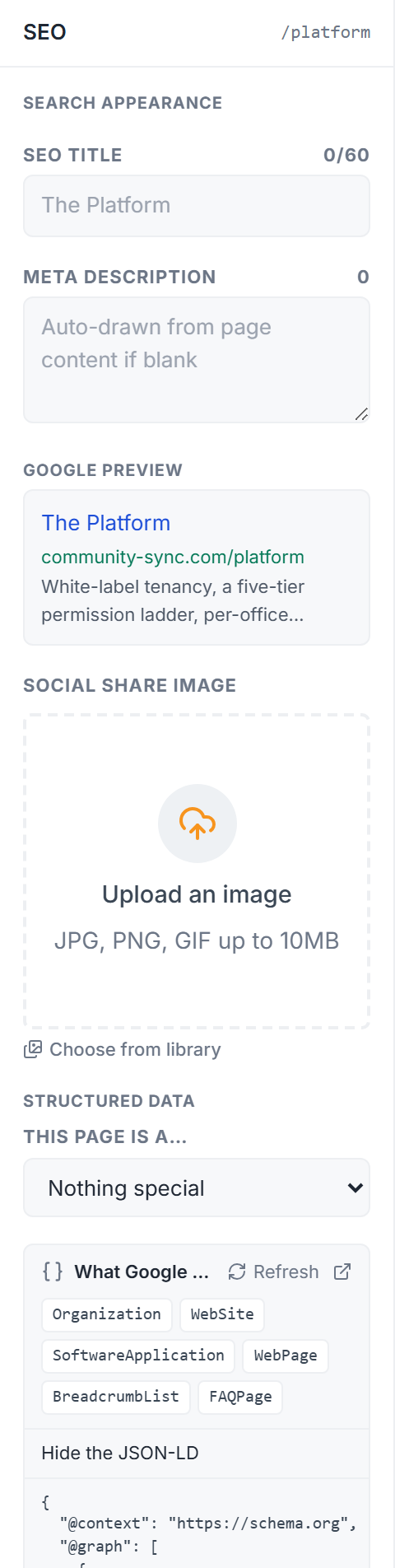
- Scroll to Structured data. Under the "This page is a…" choice you'll find What Google sees.
The row of small labels is the list of nodes the page publishes. Click Show the JSON-LD to read the full statement, and Refresh to re-read it after you save. The small arrow icon opens the raw data in a new tab.
What the labels mean
| Label | What it tells a machine |
|---|---|
| Organization | Your community, as the publisher: name, logo, and the social profiles from your footer. |
| WebSite | Your site as a whole, published by that organization. |
| WebPage (or AboutPage, ContactPage) | This page — its title, description and share image, the same ones its search snippet uses. |
| BreadcrumbList | Where the page sits: Home › this page. |
| FAQPage | The questions and answers in the page's FAQ block. |
| BlogPosting and Person | A post's headline, dates and cover, plus its byline author as a real, linked person. |
| CollectionPage | An agent directory page, naming the profiles it shows. |
| Course | A page you declared to be a course under "This page is a…". |
The nodes are connected, not a loose pile: the page says which site it belongs to, the site says who publishes it, a post points at its author, a course at its provider. That connectedness is what lets a machine treat your community as one thing rather than a scatter of unrelated pages.
Where each fact comes from
Nothing in the panel is typed in by hand. Every value is read from something you can already see and edit — which is exactly why you can trust it.
| What you see in the panel | Where to change it |
|---|---|
| Organization name | Your community's name in the Platform Console. |
| Organization logo | The logo on your community's Branding tab; if none, the logo in your website header. |
| Social profiles (`sameAs`) | Nav & footer → Footer → Social links. Profile links only — see Connect your social profiles. |
| Page title, description, image | The SEO fields above the panel, with their usual fallbacks: the page name, the page's own copy, the hero image. See Optimize a page for search. |
| FAQ questions and answers | The page's FAQ block. |
| Breadcrumb | Automatic. |
| Post headline, dates, cover, author | The post's Details tab. |
So if something in the panel looks wrong or thin, don't look for a place to edit the code. Go to the source — fix the logo, add the social links, write the description — and the panel follows.
Why there is no "edit" button
It's deliberate. Structured data that disagrees with the visible page is one of the few things search engines actively punish, because it's how spammers claim ratings and prices they don't have. By reading every value off the page itself, the platform makes that mismatch impossible — Google's structured data policies require it, and a hand-edited box would be the one place you could break the rule without noticing.
Check it with Google's own tools
The panel shows what the page publishes. Two free tools show how the outside world reads it:
- Schema Markup Validator — paste the page's public address; it lists the same nodes and flags anything malformed. Expect zero errors.
- Rich Results Test — the same check, plus which parts Google could show as an enhanced result. Most nodes are not eligible for a visual enhancement and the tool says so; that's expected. Their value is understanding, not decoration — see Where FAQ schema works today.
Good to know
- The panel reads the saved draft of the page. Save first, then Refresh.
- The published page carries exactly the same statement once you publish; the live site's cache can take a few minutes to catch up.
- Agent profile pages and listing pages publish their own nodes (a Person, a property with its price) but aren't edited in the website editor, so they don't appear in this panel. They follow the same rule: what the page shows is what the machine is told.