
Delete and restore your website
Sometimes the cleanest path forward is to scrap your current website and build fresh. CommunitySync makes that safe: every deletion snapshots your entire site to a backup first, so nothing is truly lost and you can always bring it back. This is an owner/admin action, done from the Website Overview page in the orange platform panel.
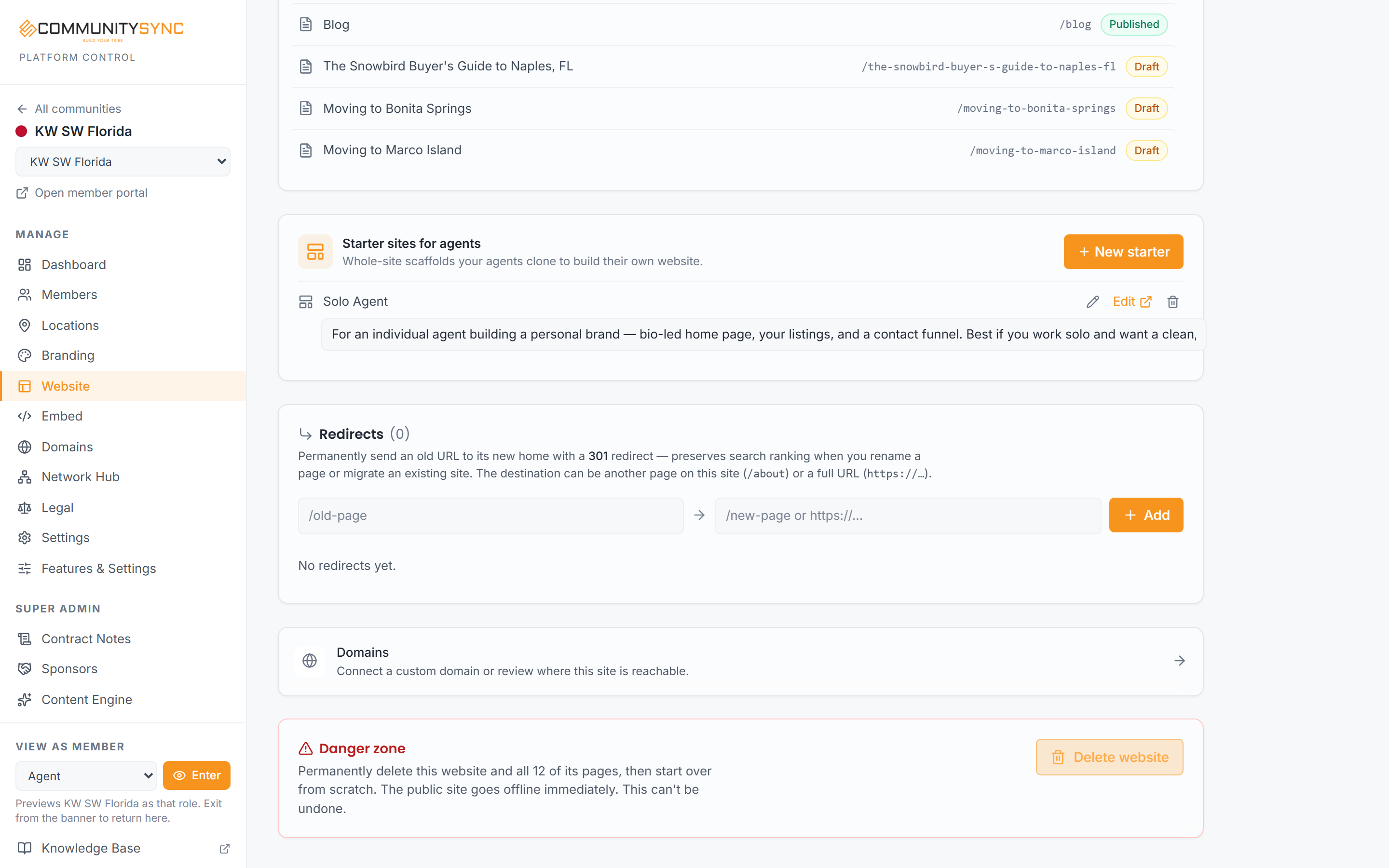
Delete your website
Deleting removes your live site so you can start over with a clean slate. Before it deletes anything, the system saves a full snapshot — all pages, both draft and published — to a backup you can restore later.
- Open the Website Overview page in the orange platform panel.
- Scroll to the Danger zone at the bottom.
- Click Delete website.
- In the confirmation modal, enter your account password.
- Confirm. The system snapshots the whole site to a backup, then deletes the live site.
Your content isn't gone. Every deletion leaves a restorable backup, so you can rebuild from scratch knowing the old version is still recoverable.
Restore a website from a backup
Restoring recreates a site from a saved snapshot. A restored site always comes back in draft — it never goes live automatically — so you can review it before the public sees it.
- On the Website Overview page, find the Backups panel.
- Choose the snapshot you want to bring back.
- Restore it. The site is recreated in draft.
- Review the restored site, then publish it when you're ready. See Take your website live for the go-live steps.
Good to know
- Only a super-admin can restore. If you're an owner or admin who deleted a site, ask a super-admin to run the restore for you.
- One site per community. A restore is blocked while your community already has a live site. If you need to bring back an old snapshot, delete the current site first (that deletion makes its own backup), then restore.
Troubleshooting
The Delete website button asks for a password
That's expected. Deleting is a protective step, so the confirmation modal asks for your account password before it snapshots and removes the site. Enter the password you sign in with.
I deleted my site and now I can't restore it
Restoring is a super-admin action. Owners and admins can delete (which always makes a backup), but only a super-admin can recreate a site from a snapshot. Reach out to a super-admin to bring your backup back.
Restore is blocked or greyed out
Each community can have only one website at a time. If a live site already exists, restore won't proceed. Delete the current site first — that deletion saves its own backup — and then restore the snapshot you want.
My restored site isn't showing to the public
A restored site always comes back in draft, on purpose, so you can review it first. It won't be public until you publish it. See Take your website live.