
Set up redirects for moved or renamed pages
When a page moves or you migrate an existing site into CommunitySync, the old web addresses people have bookmarked, linked to, or ranked in search can suddenly lead nowhere. A redirect quietly forwards one of those old paths to its new home, so visitors always land in the right place and you keep the search value those links have built up. This article shows you how to add and manage redirects on your community website.
Where redirects live
Redirects are managed on the Website Overview page in the orange platform panel — the same page that shows your site status, public URL, and favicon. They are not part of the full-screen editor. Only community owners and admins can manage them; managers and agents cannot.
To see them, open your Website Overview and scroll to the Redirects section.
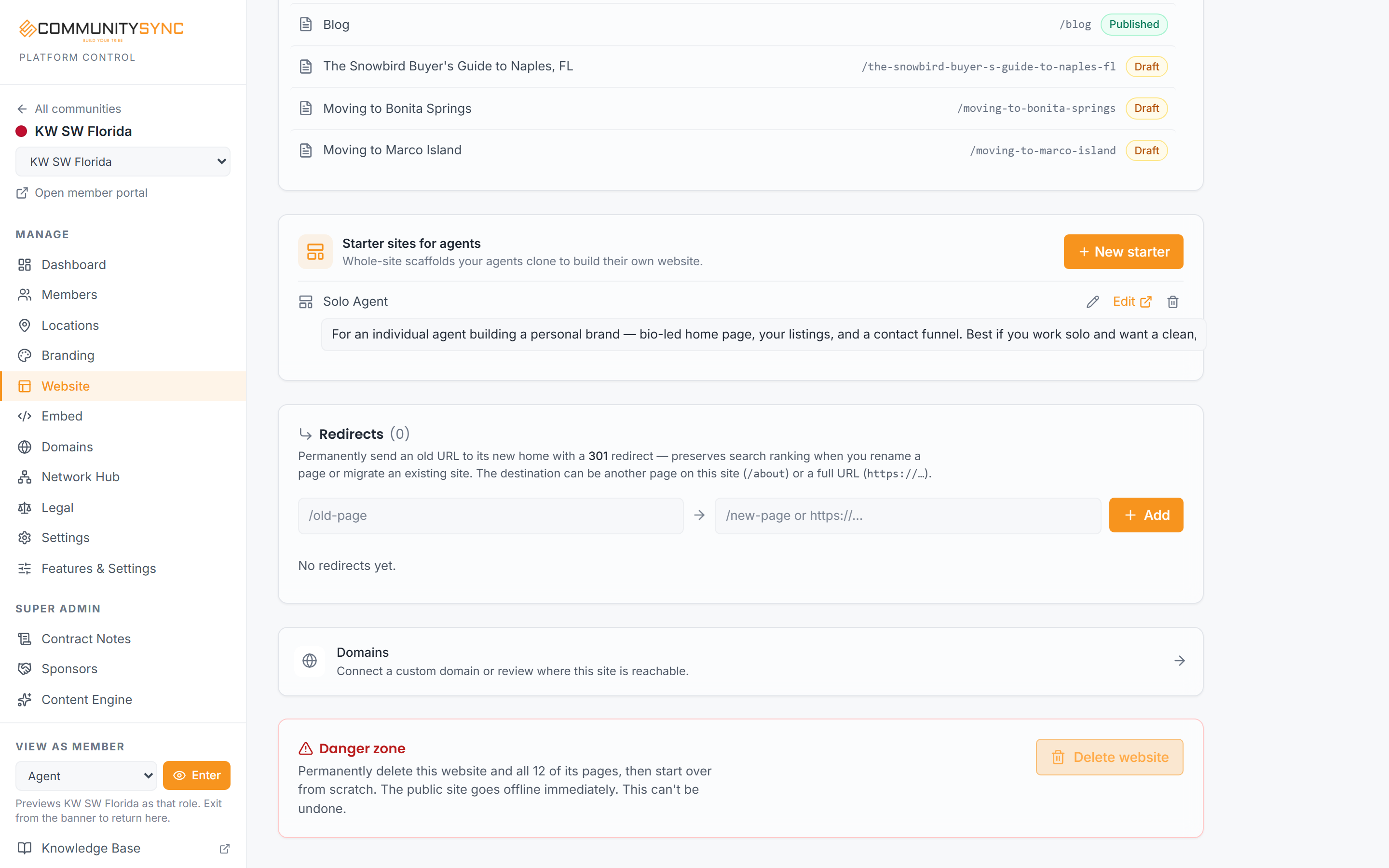
Add a redirect
- On the Website Overview, find the Redirects section.
- Enter the old path — the address you want to forward, starting with a slash, for example `/old-page`.
- Enter the destination — where visitors should land instead. This can be another page on your site or a full web address.
- Click Add. The redirect is created as a permanent (301) redirect, which tells browsers and search engines the move is permanent so link value carries over to the destination.
Redirects are added one at a time. There is no bulk import yet, so for a large migration you will add each old path individually.
Turn redirects on or off, or delete them
Each redirect in the list can be managed on its own:
- Use the enable/disable control to switch a redirect off temporarily without losing it, then switch it back on later.
- Delete a redirect you no longer need to remove it permanently.
How "page wins" keeps you safe
A redirect only fires for a path that has no published page. If a live page exists at that address, the page always wins and the redirect stays dormant. This means a redirect can never hijack or hide a real page on your site.
A useful side effect: if you later re-create a page at a path that has a redirect, the page takes over and the redirect simply stops firing. You do not have to remember to delete the old redirect first.
Renaming a page is not the same as moving it
Renaming a page changes its title but not its URL — the web address stays exactly the same, so existing links keep working and you do not need a redirect. See manage your website pages for how renaming works.
You only need a redirect when a path genuinely has to move: you have retired a page, changed its address on purpose, or brought in a site whose old addresses differ from your new ones. For getting the whole site live in the first place, see take your website live.
Troubleshooting
My redirect doesn't fire
Almost always this means a live published page already exists at that path. Because pages win over redirects, the redirect stays dormant until that path has no published page. Check your pages list — if there is a page at that address, either the redirect is unnecessary or you need to remove/unpublish that page for the redirect to take over.
I need to move dozens of paths at once
Redirects are added one at a time; there is no bulk import yet. For a large migration, add each old path individually. Start with your highest-traffic and most-linked pages first so the most important links are covered soonest.