
Connect a custom domain to your website
Your community is always reachable at its built-in address, so a custom domain is entirely optional. When you're ready to use your own branded web address, you add the hostname on the Domains page — CommunitySync then takes care of the security certificate and sign-in email configuration automatically, and shows you a live connection status. The only thing left is one DNS record on the domain itself, added by whoever owns it.
Before you start
Every community has two built-in addresses that always work: your member portal at `<your-slug>.mycommunitysync.com`, and (if you've published a website) your public site at the "-site" host. A custom domain is a friendlier name that points at one of those two services. Nothing breaks if you never add one.
You'll need to know who manages DNS for the domain — that's where the one required record gets added. If that's not you, the Domains page gives you the exact record to forward to them.
Add a custom domain
- In the orange platform panel, open your community's Domains page.
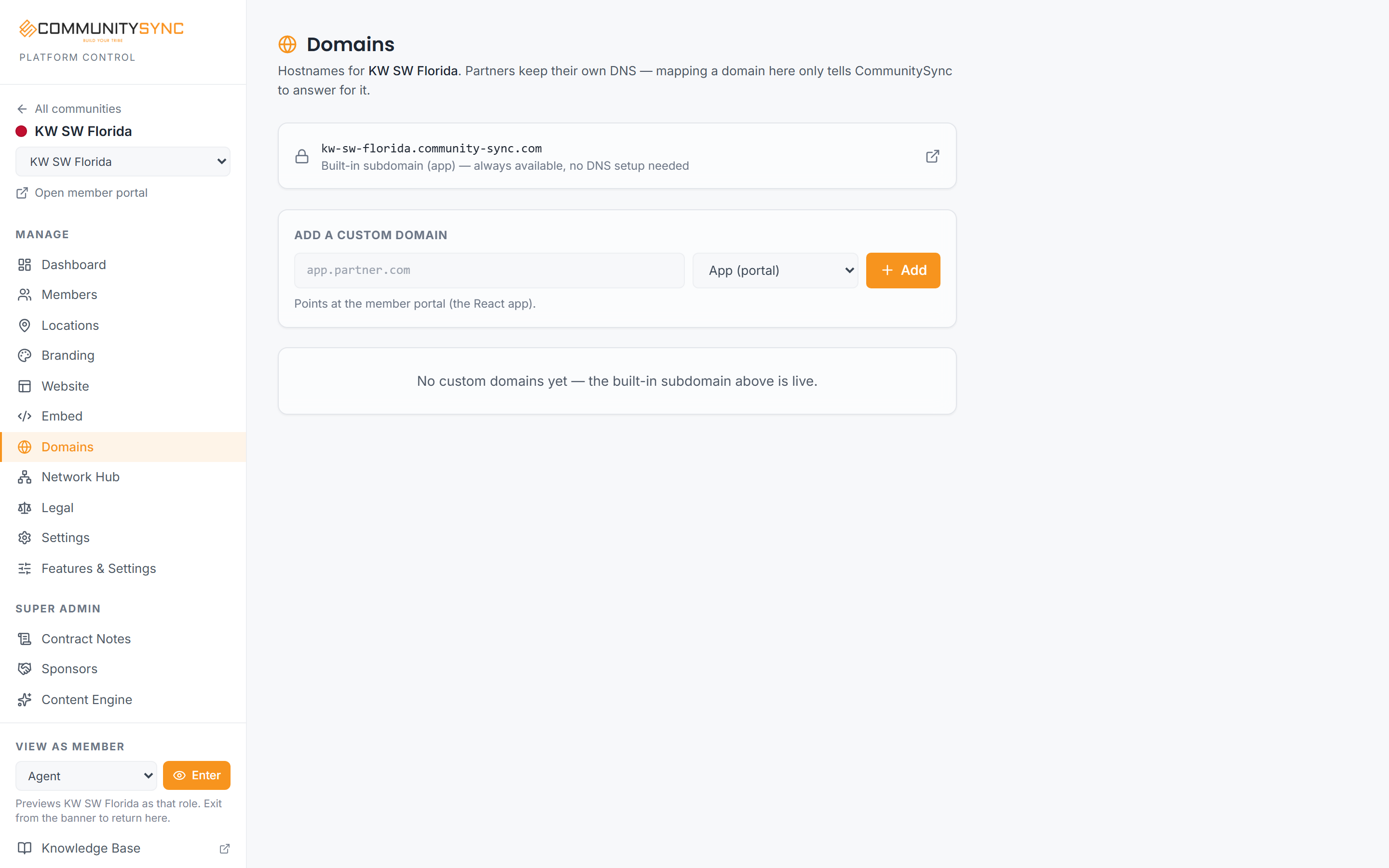
- Under Add a custom domain, type the hostname you want to use — for example `app.yourbrand.com`. If you paste a full web address, the `https://` and any trailing path are stripped automatically; only the hostname is kept.
- Choose the Type:
- App points the domain at your member portal (sign-in and the member app).
- Website points the domain at your public website.
- Click Add.
For App domains, that click also registers the domain for a security certificate and allowlists it for sign-in emails (invites and password resets) — there is nothing else to configure inside CommunitySync.
The one DNS record
After you add an App domain, a Partner DNS setup card appears above the list showing the single record the domain owner needs to add — a CNAME pointing your chosen hostname at CommunitySync, with a copy button for the exact value.
Two things matter when adding it:
- It's one record, and only one. Email, an existing website, and every other DNS record on the domain stay untouched.
- Keep the trailing dot at the end of the value if the DNS panel accepts it. Some panels otherwise quietly append your own domain to the value, which breaks the connection — it's the single most common setup mistake.
DNS changes can take up to an hour to take effect worldwide.
Watching the status
Each App domain in the list carries a status chip:
- Pending DNS — CommunitySync is ready; it's waiting for the DNS record to go live. This flips to Connected by itself — use the refresh button next to the row to re-check.
- Connected — the domain is live, certificate and all. Open it and you should see your branded portal.
- Provision — the automatic setup hit a snag when the domain was added; click the chip to retry. It's always safe to retry.
- Manual setup — automatic provisioning isn't available in this environment; your platform contact will complete the connection for you.
Removing a domain from the list also removes its certificate and sign-in configuration — the domain owner's DNS is never touched.
Website or App — picking the right type
The Type decides which service the domain lands on:
- Choose App when you want the domain to open your members' sign-in and portal experience.
- Choose Website when you want the domain to show your public, marketing-facing website. Website domains are currently completed together with your platform contact — reach out after adding one.
If a domain opens the sign-in screen when you expected the marketing site (or the reverse), the type is almost always the reason: remove it and re-add it with the correct Type.
Troubleshooting
The status has said "Pending DNS" for a long time
The DNS record probably isn't live yet, or was mangled by the DNS panel. Ask whoever added it to double-check the value ends with a trailing dot — panels that strip it silently append your own domain and break the chain. A DNS checker (like dnschecker.org) pointed at your hostname will show what the world currently sees. Meanwhile your built-in address keeps working.
It works for me but not for a colleague
Their computer or office network cached an earlier "this domain doesn't exist" answer from before the record went live. It clears itself within the hour — or they can restart their browser, or test on a phone using mobile data.
Sign-in works, but invite or password-reset emails point somewhere odd
Tell your platform contact — the sign-in email configuration for the domain needs a look. Members can keep signing in normally in the meantime.
The domain opens the wrong thing
Check the Type on the Domains page — App opens the member portal, Website opens the public site. Remove and re-add with the correct type if needed.