
Add a hero banner (Basic, Advanced, or App)
A hero is the banner at the top of a page — the first thing a visitor sees and the block that sets the tone for everything below it. The website builder gives you three heroes to choose from, from a plain text opener to a full-bleed media banner to a product-style app showcase. This article covers what each one is for and how to fill it in. Only community owners and admins can edit the website, inside the orange platform panel.
Add a hero to a page
- Open the full-screen editor for the page you want (see Open the website editor).
- In the left icon rail, click Add to open the Add panel.
- Open the Hero group and choose one of the three heroes: Hero (Basic), Hero (Advanced), or App hero.
- The block drops onto the canvas. Fill in its fields in the right inspector — the canvas updates live as you type.
Heroes are meant to open a page, so a hero usually sits at the very top. If you want a hero lower down as well, that's fine — just mind the one-heading rule below.
Hero (Basic) — a clean text opener
Use this when you want a strong headline and a clear next step without any imagery. It's the lightest of the three and works well when the page below carries the visuals.
Fill these fields in the inspector:
- Eyebrow — a short line above the headline (a category or kicker).
- Headline — the main message.
- Subhead — a supporting sentence under the headline.
- Up to two buttons — for example a primary "Get started" and a secondary "Learn more". See Calls to action for wording and links.
There's no media on this hero — it's text only.
Hero (Advanced) — a full media banner
This is the big, full-width banner with an image, slideshow, or video behind the text. Reach for it when you want the page to open with impact. It has the most options of the three.
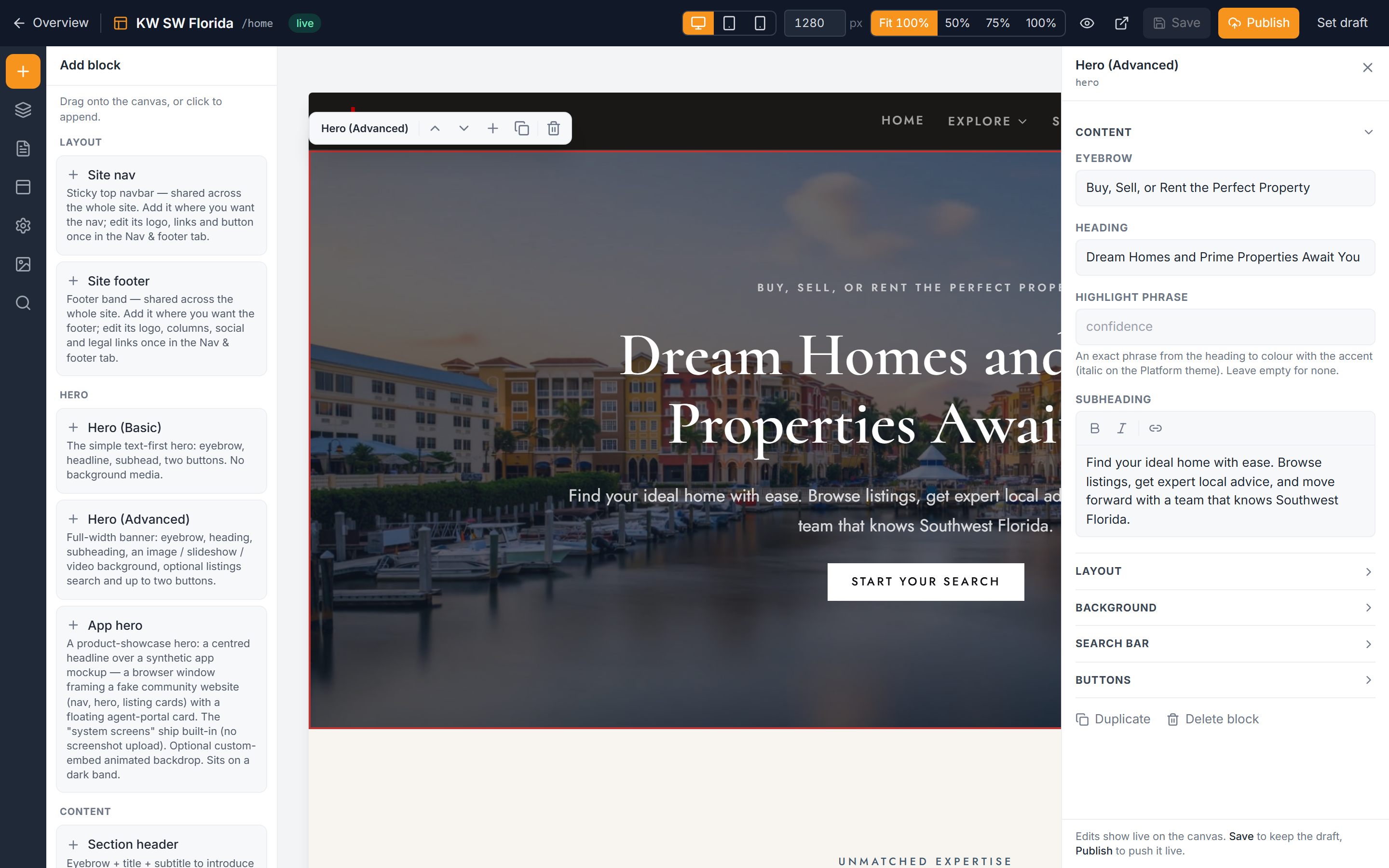
Work through the inspector:
- Eyebrow, Heading, and Subheading — the text, same idea as the basic hero.
- Highlight — an optional phrase pulled from your heading that gets painted in your accent color. It must be an exact phrase from the heading text; if it doesn't match, nothing highlights.
- Background — choose image, slideshow, or video. There's also an advanced custom-embed option (see the note below). Set the focal point so the important part of the media stays in frame, and use the Tint slider to control how strongly the section color washes over the media. Tint is where text readability lives — push it up if words are getting lost against a busy photo. Full detail on media backgrounds is in Section backgrounds.
- Banner height — standard, tall, or full (full fills the screen).
- Layout — center (text centered over the media) or split (text on one side, a side image or video on the other). Split can also include an optional Watch button that opens a video in a modal.
- Search bar — optional. Turn it on to put a listings search box in the hero, with your own placeholder text and a target page (defaults to /listings). See Listings on your website.
- Up to two buttons.
App hero — a product-style showcase
The app hero centers a headline over a built-in mockup of an app screen — a polished, product-launch look without needing your own screenshots. It ships with demo screens already filled in, so it looks finished the moment you drop it in.
- Add the App hero and set the centered headline.
- Adjust the mockup fields in the inspector to match your product or community. Every mock field is optional — leave the demo content in place, replace what you like, or clear fields you don't need.
Keep one main heading per page
A page should have exactly one main heading (an h1). If you place a second hero lower on the same page, set that hero's Heading level to h2 so you don't end up with two competing top headings. This keeps the page readable and helps search engines understand its structure — see Website SEO basics.
A note on custom-embed backgrounds
The advanced hero's custom-embed background runs raw HTML and scripts you paste in. Because that can do more than place a picture, it's restricted to owners and super-admins. Use it only when a plain image, slideshow, or video won't do the job — for everyday banners, stick to the standard background types.
Troubleshooting
My highlight phrase isn't coloring
The Highlight must be an exact, word-for-word phrase from your heading, including matching capitalization and punctuation. If it doesn't appear in the heading text, nothing gets accent-colored. Copy the phrase straight from the heading to be safe.
The text is hard to read over my photo
Raise the Tint slider on the Background. A higher tint washes more of the section color over the media, which lifts the text off a busy or bright image. You can also try a different focal point so the text sits over a calmer part of the photo.
The page has two big headings competing
You likely have two heroes on the page, each acting as the main heading. Set the second hero's Heading level to h2 so only the top hero is the page's main heading.
I can't find the custom-embed background option
The custom-embed background is limited to owners and super-admins because it runs raw code. If you don't see it, use image, slideshow, or video instead — those cover almost every banner.