
Design a great agent starter site
A starter site is the head start you give every agent. The better it's built, the less each agent has to do — they clone it, swap in their name and photo, and they're live. This guide is about what to put in a starter, not the mechanics of the editor (those are covered in the Website Builder guides, linked throughout). Open a starter by clicking Edit next to it in the Starter sites for agents section — see Create a starter site for your agents.
How editing a starter differs
You're in the same website editor you use for the community site, with two differences worth remembering:
- The site is badged Starter in the top bar, and there's no Publish or Go live button. A starter never goes public — it's only ever cloned. You build it with Save and check it with the Preview (eye) button.
- Everything an agent clones is the draft you've saved. When an agent clones the starter, they copy your saved draft — the theme, the navigation and footer, and every page. So there's no "publish the starter" step: whatever you Save is what agents get. Save often, and preview before you tell agents it's ready.
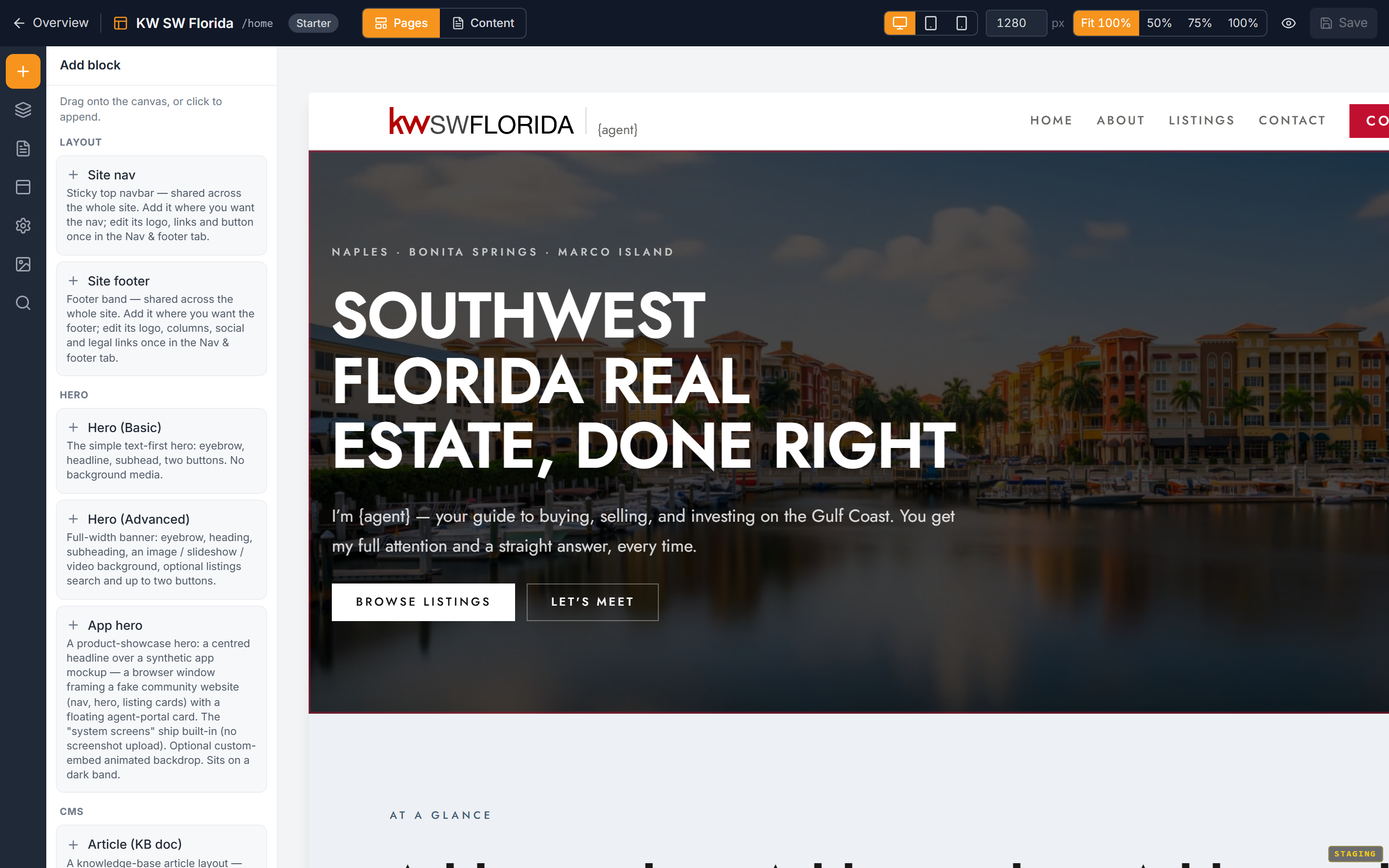
Build the pages a personal site needs
Start from the shape of a real agent site. A solid solo-agent starter is usually four pages:
- Home — a hero that introduces the agent, plus a few sections that build trust.
- About — room for a bio, a photo, credentials.
- Listings — the agent's properties (see below).
- Contact — a lead form so buyers and sellers can reach them.
Add these pages and arrange their blocks in the editor — see Manage your website's pages and Add and arrange blocks. To repeat consistent sections across pages, reuse a layout with page templates as detached (non-CMS) copies.
Write copy agents will personalize, not copy blindly
The single most useful thing you can do is write the words as ready-to-swap placeholders. An agent should be able to find-and-replace their details and be done.
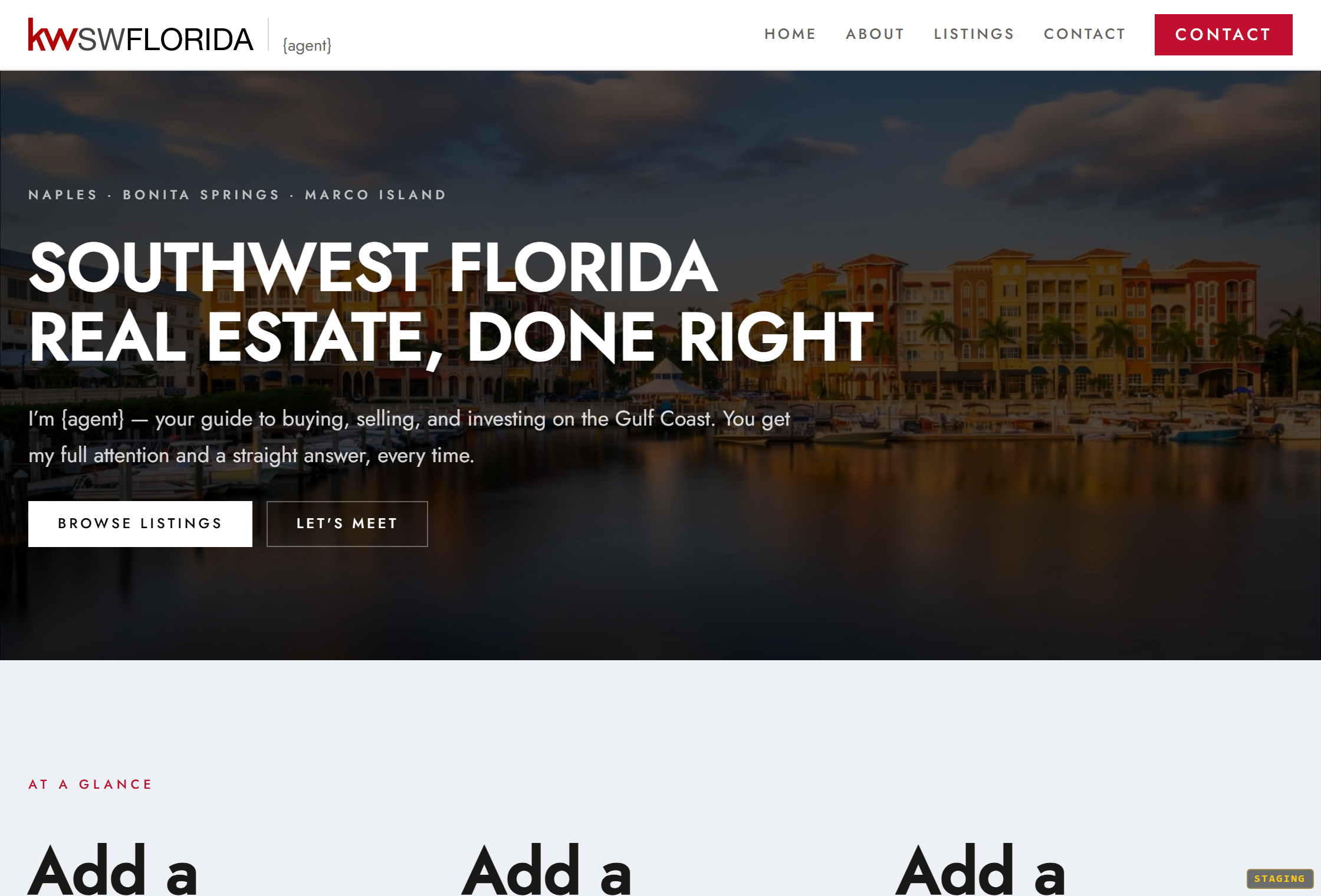
- Use an obvious stand-in name and role — for example a John Doe, real estate agent placeholder — so it's clear what an agent needs to change.
- Leave the agent's bio, headline, and contact details as short prompts, not finished prose about a specific person.
- Point buttons at the right pages (Listings, Contact) even though the words are placeholder — the structure survives the clone, the copy gets rewritten.
The goal: an agent who clones this should never have to build anything, only edit.
Add the agent's listings
Put a Listings block on the listings page (and a small selection on the home page if you like). Use the dynamic listings block so the page fills itself from your community's inventory — see Show listings on your website.
By default it shows your community's listings, which is a great preview. Once an agent clones the starter, they can narrow that same block to their own properties from their editor, so their personal site shows their inventory. You don't need to do anything special — just include the block.
Set navigation, footer, theme, and brand
These carry over to every cloned site, so set them once, well:
- Navigation and footer — one nav and one footer for the whole site. Build them so the menu matches your pages. See Set up site navigation and Build your footer.
- Theme and style — pick a theme and tune the type and spacing. See Choose a theme and Fine-tune your website's style.
- Brand colors — cloned sites inherit your community brand by default, and agents can override their own logo and photo later. Set sensible brand colors so the starter looks finished out of the box. See Set your site's brand colors.
- Images — use real, well-cropped photography; upload it into the site so it travels with the clone. See Manage website images.
What to leave out
- CMS collections and blogs. Agents don't get the content-management surface on their personal sites, so a starter built around a blog or a CMS collection won't clone into something they can maintain. Keep starters to standard pages and blocks.
- Anything community-specific an agent shouldn't inherit. Remember every word and image becomes the agent's until they change it — don't leave in copy that only makes sense for the office as a whole.
Preview before you hand it over
Click the Preview (eye) button in the editor to see the real, responsive output. Agents also get a Live demo link on the starter's picker card that opens this same preview — so a rough starter is a rough first impression. Walk every page at desktop and mobile widths before you announce it.
Troubleshooting
There's no Publish button in the editor
That's expected for a starter. Starters are never published — they're clone sources. Use Save; whatever you save is what agents clone. The Publish and Go live buttons only appear on real (public) sites.
My listings block is empty in the preview
The block shows your community's listings. If your community has no published listings yet, it renders empty — add inventory, or accept that agents will populate it with their own after cloning. See Show listings on your website.
I changed the starter but an agent's site didn't update
That's by design. A clone is independent — your later edits to the starter reach only new clones, not sites an agent already created. See Manage your agent starter sites.