
Your site and your community's brand
Your personal site sits under your community's brand. Knowing which parts are yours saves a lot of hunting for controls that aren't there.
What comes from your community
- Brand colours — the accent colour on buttons, links and highlights.
- The logo in the header.
- The community name, which appears after your page title in the browser tab and when someone shares a link.
- The organisation details search engines read.
You can't change these from your site, and the Nav & footer panel's logo control links to a Branding page only community admins can open. If the branding is wrong, that's a conversation with your community admin — and fixing it there fixes it everywhere at once.
What's yours
- Every page and every section on it.
- All the words and images.
- The theme — five presets, plus finer controls for fonts, corners, spacing and width, in Site settings.
- Your navigation menu and footer — including your own name, title and social links.
That's plenty of room to look distinct while still reading as part of the community.
Check your name in the header and footer
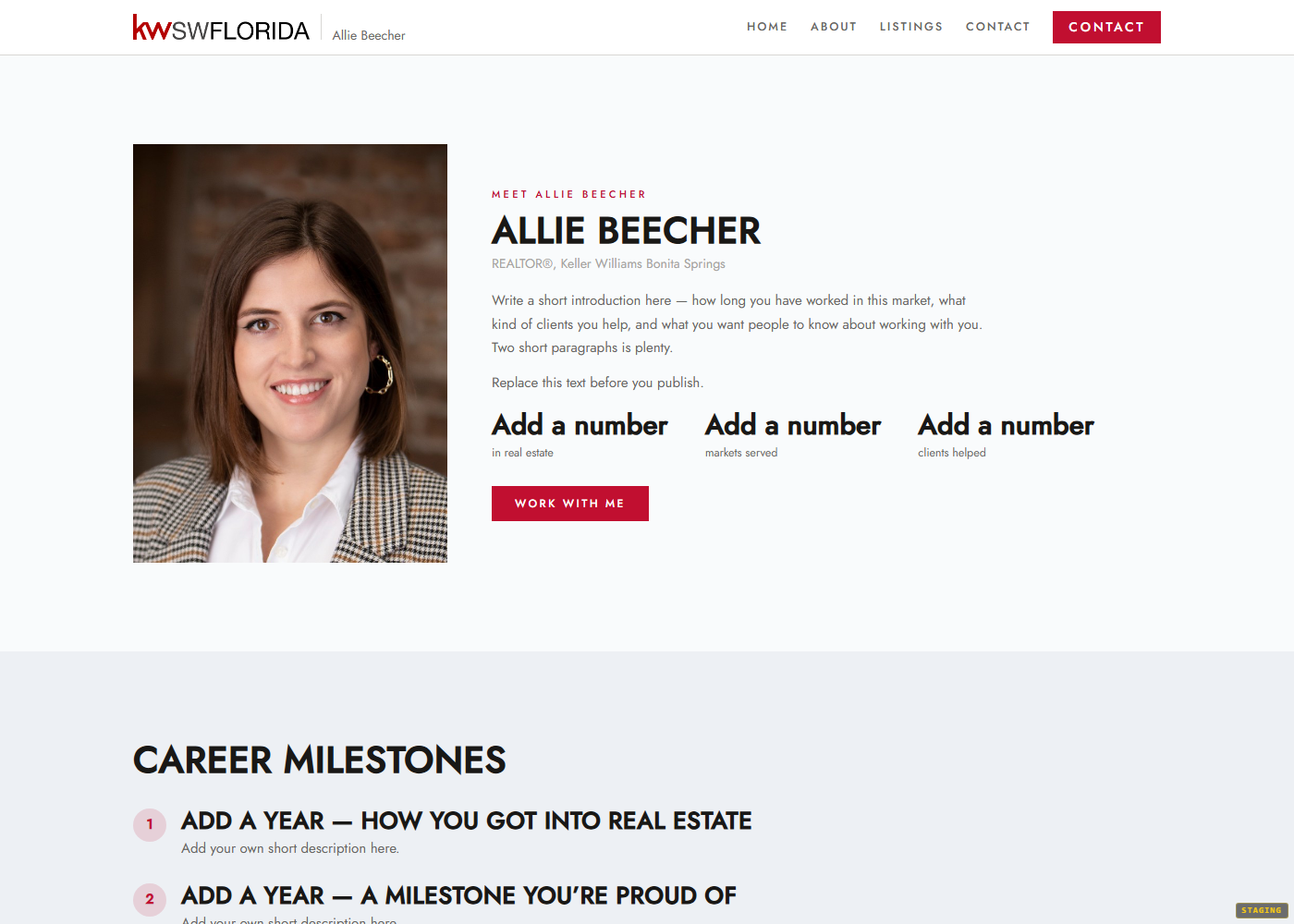
When you create a site from a starter, your name, title and company are filled in automatically from your profile — in the header, in the footer and in the copyright line.
Look at those three spots on your first visit. If your profile was incomplete when you created the site, they'll read oddly — a missing job title leaves a gap, and a blank name leaves a bare copyright line.
To fix it:
- Update your details in Account Settings so future sites are right.
- Then correct this site directly: open the editor, go to Nav & footer, and edit the brand text, tagline and copyright by hand.
Updating your profile does not rewrite a site you've already created.
The footer is shared, and it goes live instantly
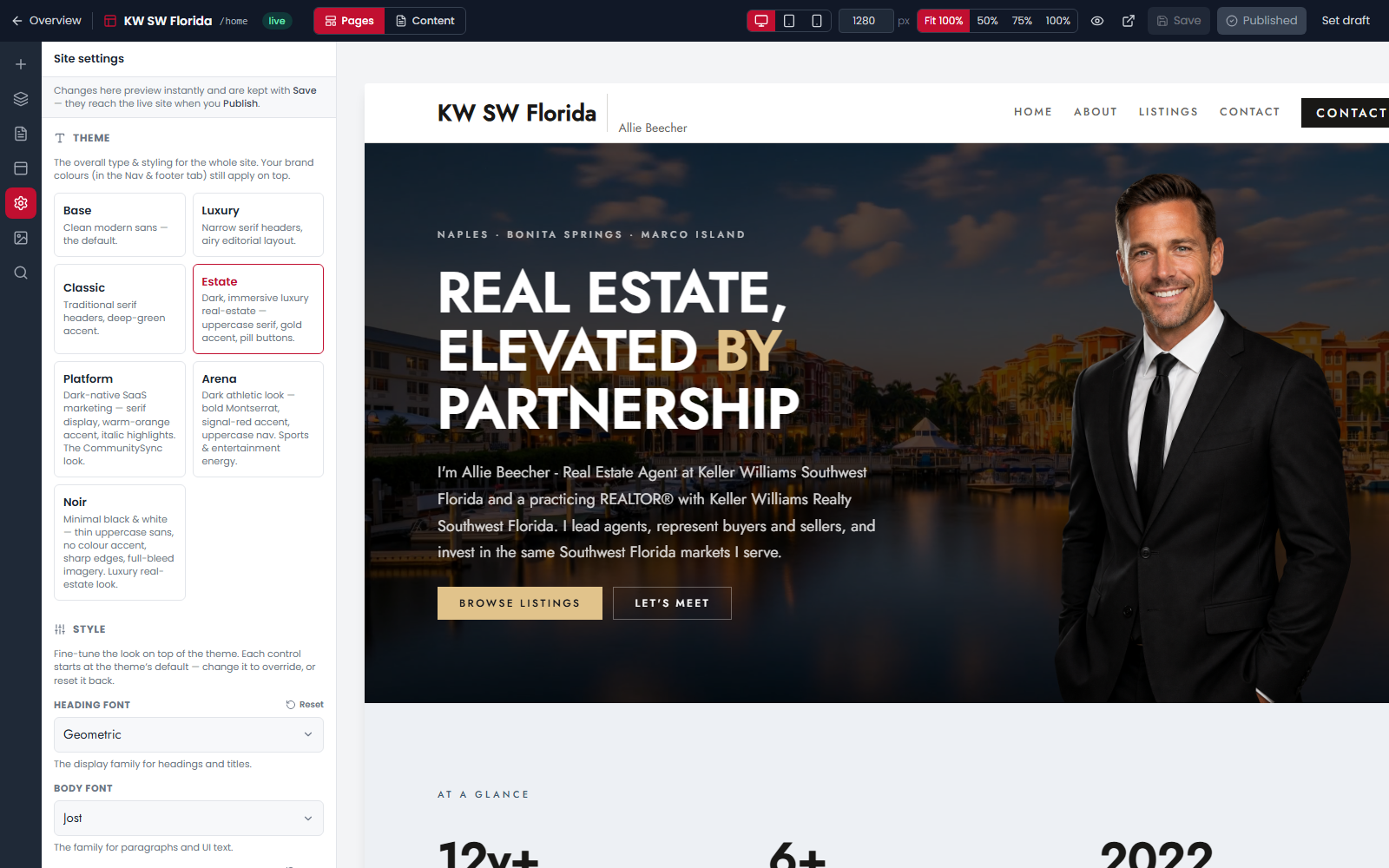
Your nav bar and footer are written once and appear on every page — they're not per-page sections.
They also behave differently from page content: saving the Nav & footer panel takes effect on your live site straight away, with no separate publish step. There's no draft stage, so don't use that panel to park half-finished ideas.
Social links
Add your own profiles in Nav & footer → Footer → Social links. Only networks with a URL show an icon, so leave the rest blank rather than filling them with a placeholder.
Point them at your actual profile pages. A link to a network's home page rather than your profile looks like an oversight to anyone who clicks it.