
Your personal website — what it is and how it works
My Website gives you a real, public website of your own — separate from your community's main site, but built with the same tools and carrying the same brand.
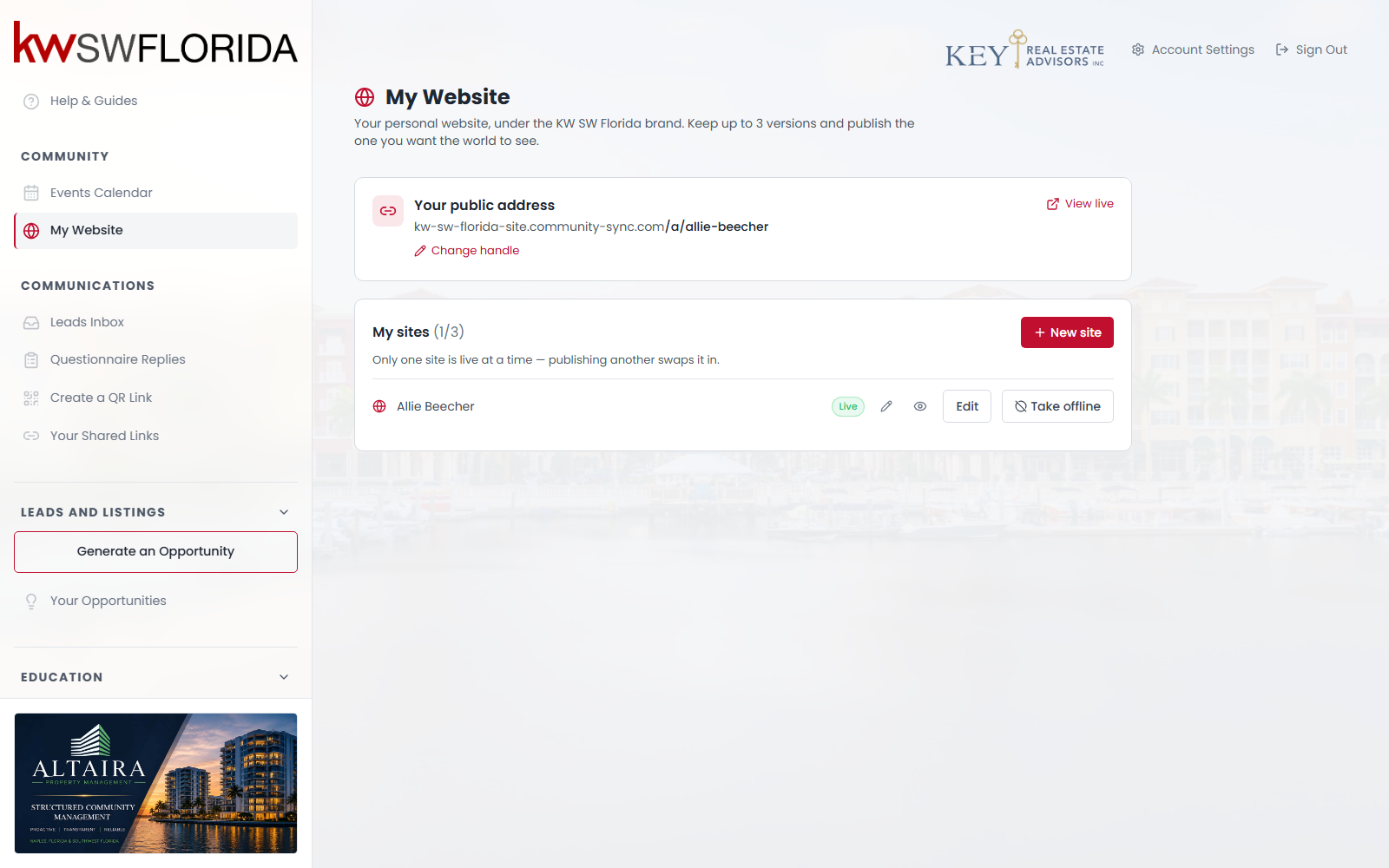
You'll find it in the left sidebar under Community → My Website. If you don't see it, your community hasn't switched the feature on; ask your community admin.
What you get
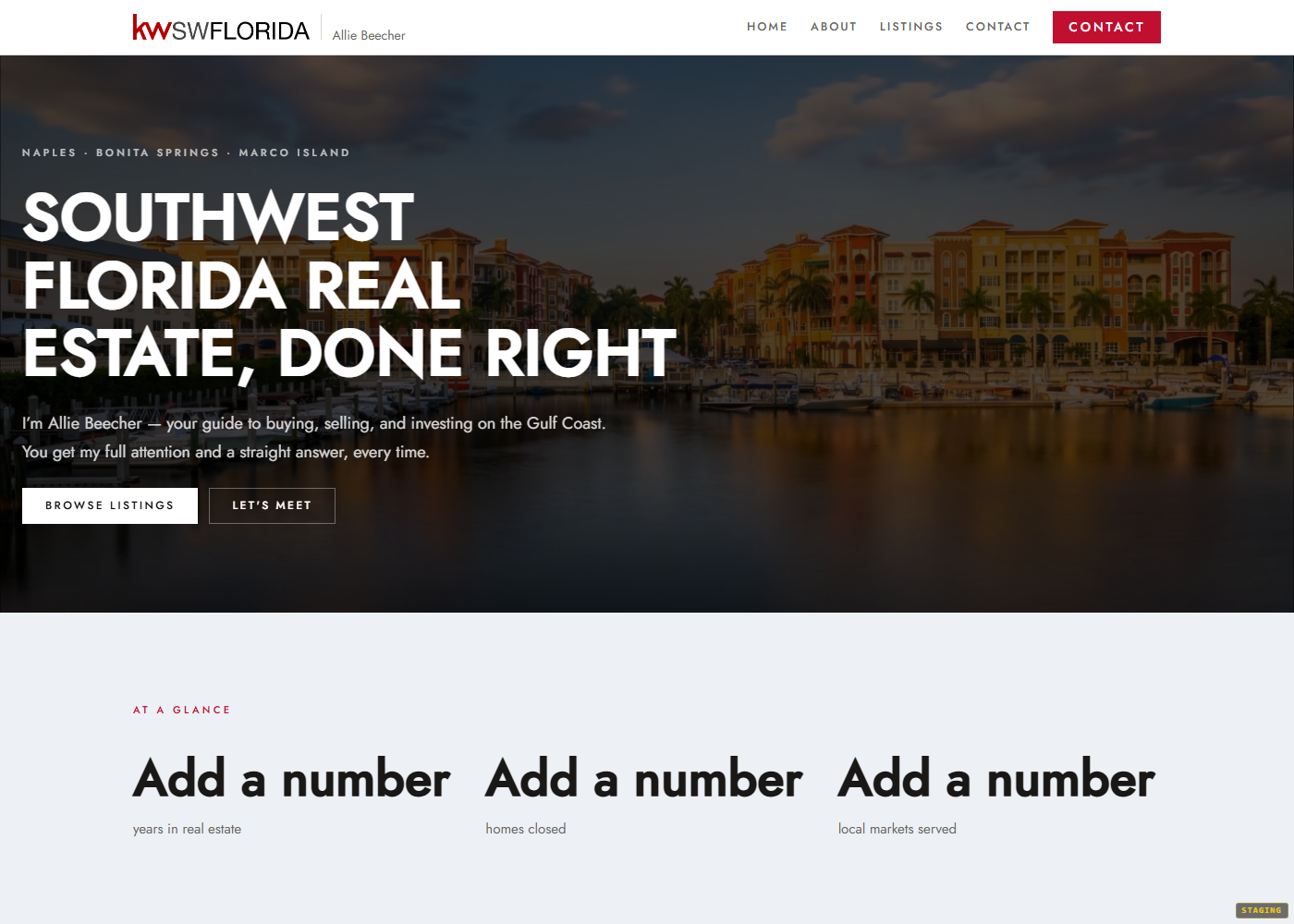
- A public web address of your own, in the form `yourcommunity-site.mycommunitysync.com/a/your-handle`.
- Up to three sites you can build and keep side by side — think of them as versions or experiments.
- One of them is live at a time. The other two stay private drafts.
- A full website editor — the same three-pane builder your community admins use, with around forty ready-made section types.
Where your site comes from
You don't start from a blank page. Your community prepares starter templates — complete, designed sites — and you make your own copy of one. Everything in your copy is yours to change: text, photos, colours, which sections appear, and which pages exist.
If your community hasn't prepared any starters yet, the New site button won't appear, and the page will tell you to check back. That's the one thing you can't work around yourself.
What's yours and what's the community's
Your site sits under your community's brand. The logo, the brand colours, the site name in the browser tab and the organisation details behind the scenes all come from the community. What's yours is the content and the layout — your words, your photos, your pages, your choice of theme and sections.
This is deliberate: a visitor should be able to tell at a glance that you're part of the community, while the site still reads as yours.
How it relates to your community's website
They're separate sites that happen to share a host. Your community's main website lives at the root of the address; yours lives under `/a/your-handle`. Editing yours never affects theirs.
One consequence worth knowing: if you type a link like `/contact` into a button, it points at the community's contact page, not yours. See [Link to your own pages, not the community's](my-website-troubleshooting) for how to avoid that.
The order to do things in
- [Claim your web address](claim-your-web-address) — you can't create a site without one.
- [Create your site from a starter](create-your-site-from-a-starter).
- [Edit it](edit-your-site) until it says what you want.
- [Publish it](publish-your-site).
Each step has its own guide. If something isn't showing up the way you expect, start with [Why isn't my site showing?](my-website-troubleshooting) — nearly every question lands in that list.