
Publish your site (and the two different Publish buttons)
Publishing trips people up because two different buttons are both called Publish, on two different screens. Learn the difference once and the rest is easy.
| Where | What Publish does there |
|---|---|
| My Website (the list of your sites) | Chooses which of your sites is the public one. |
| Inside the editor (top bar) | Pushes the page you're currently looking at live. |
A useful way to hold it: the one on My Website answers "which site?", the one in the editor answers "which changes?".
Put your site online
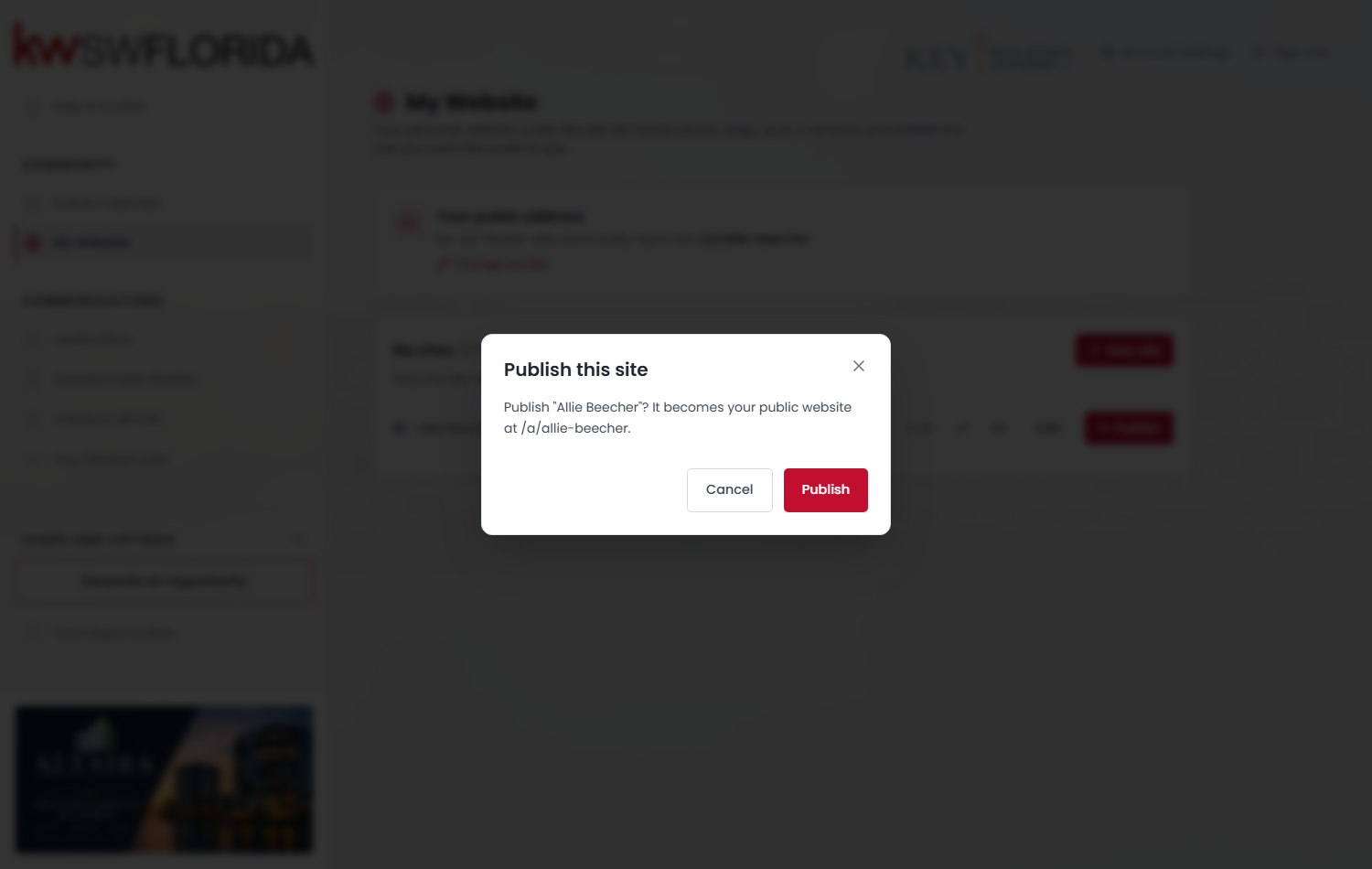
- Go to My Website.
- Find the site you want and click Publish.
- A box appears — "Publish this site — it becomes your public website at /a/your-handle." Confirm.
The badge flips from Draft to Live, and a View live link appears next to your address. A site you created from a starter is complete and ready, so this is genuinely all it takes the first time.
Publishing changes you make later
Once you're editing, the rules change. Inside the editor:
- Save stores your work as a private draft. Nothing public changes.
- Publish takes the page you're on and makes those changes public.
Publish is per page. If you edited your Home page, your About page and your Contact page, you have to open each one and publish it. Saving all three and publishing once only pushes the page you happened to be looking at.
The Publish button tells you where you stand: it turns red with a dot when the current page has unpublished changes, and settles into a greyed-out ✓ Published when that page matches what visitors see.
Only one site can be live
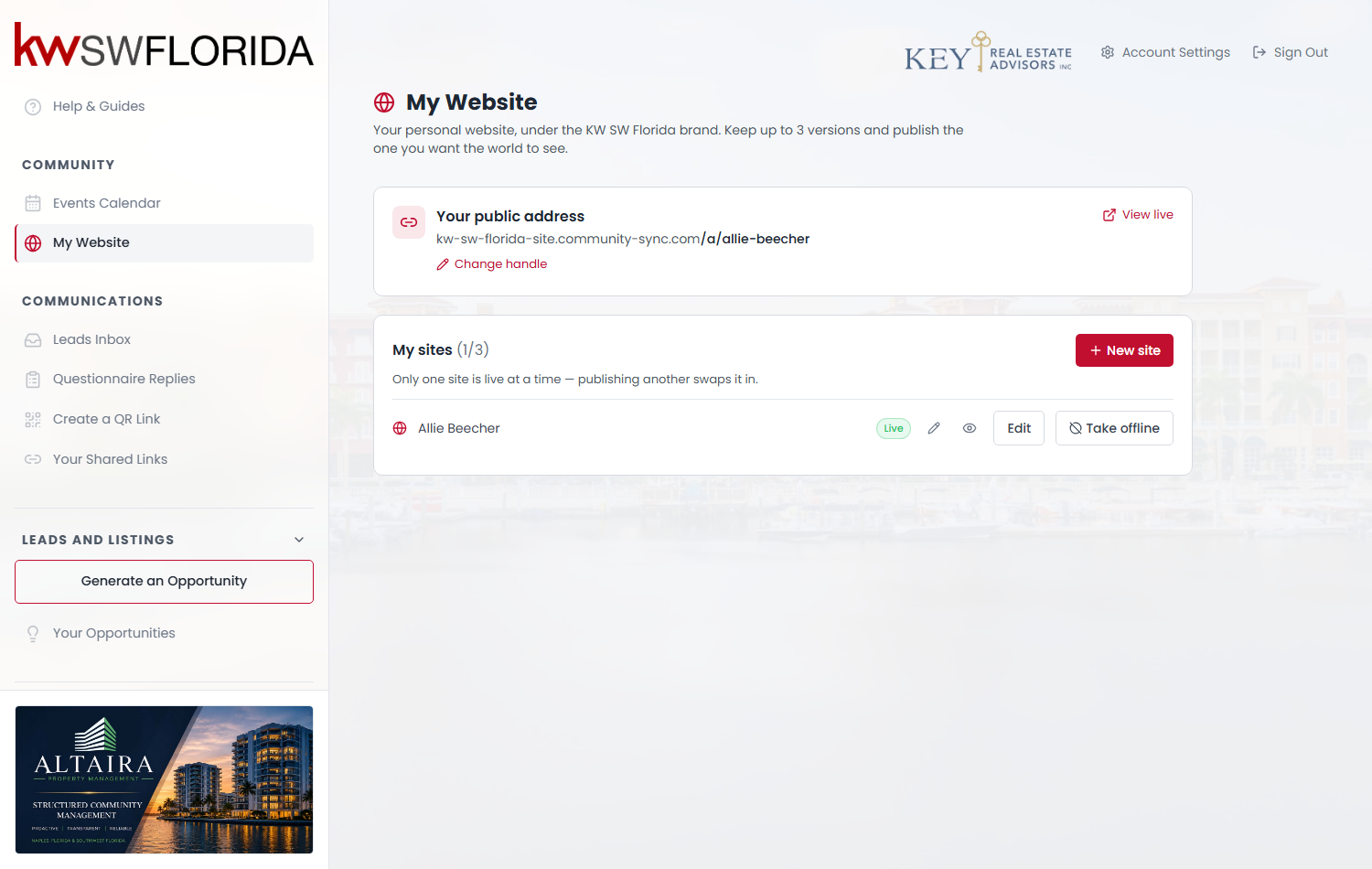
You can keep three sites, but only one is public. Publishing a different one automatically takes the current one offline — the list says as much: "Only one site is live at a time — publishing another swaps it in." It's a swap, not a duplicate, and nothing is lost; the old one becomes a draft you can publish again.
Taking your site offline
Click Take offline on the live site's row. Your address stops serving and visitors get a "not found" page. The site itself is untouched — publish it again whenever you want.
Why changes take a few minutes to appear
Published pages are cached for speed, so an update can take about five minutes to reach everyone, and occasionally a little longer. This is normal and there's nothing to click to hurry it along.
Two things worth knowing:
- The very first time you publish, it appears immediately — there's nothing cached yet to get in the way.
- If everyone else can see the change and you can't, that's your own browser. Hard-refresh with Ctrl+Shift+R (Cmd+Shift+R on a Mac).
Adding `?something` to the end of the address does not force a fresh copy — that trick works on some sites but not here. Just wait, or hard-refresh.
Checking before you publish
Click the eye icon on any site row to open a private preview. It shows your current draft, it's always up to date, and it works before you've ever published. Anyone with that link can open it without signing in, so treat it as semi-private — fine for a colleague, not for anything confidential.