
Edit your site
Click Edit on any of your sites to open the full-screen editor. It's the same builder your community admins use, so anything you've been shown about the community site applies here too.
The layout
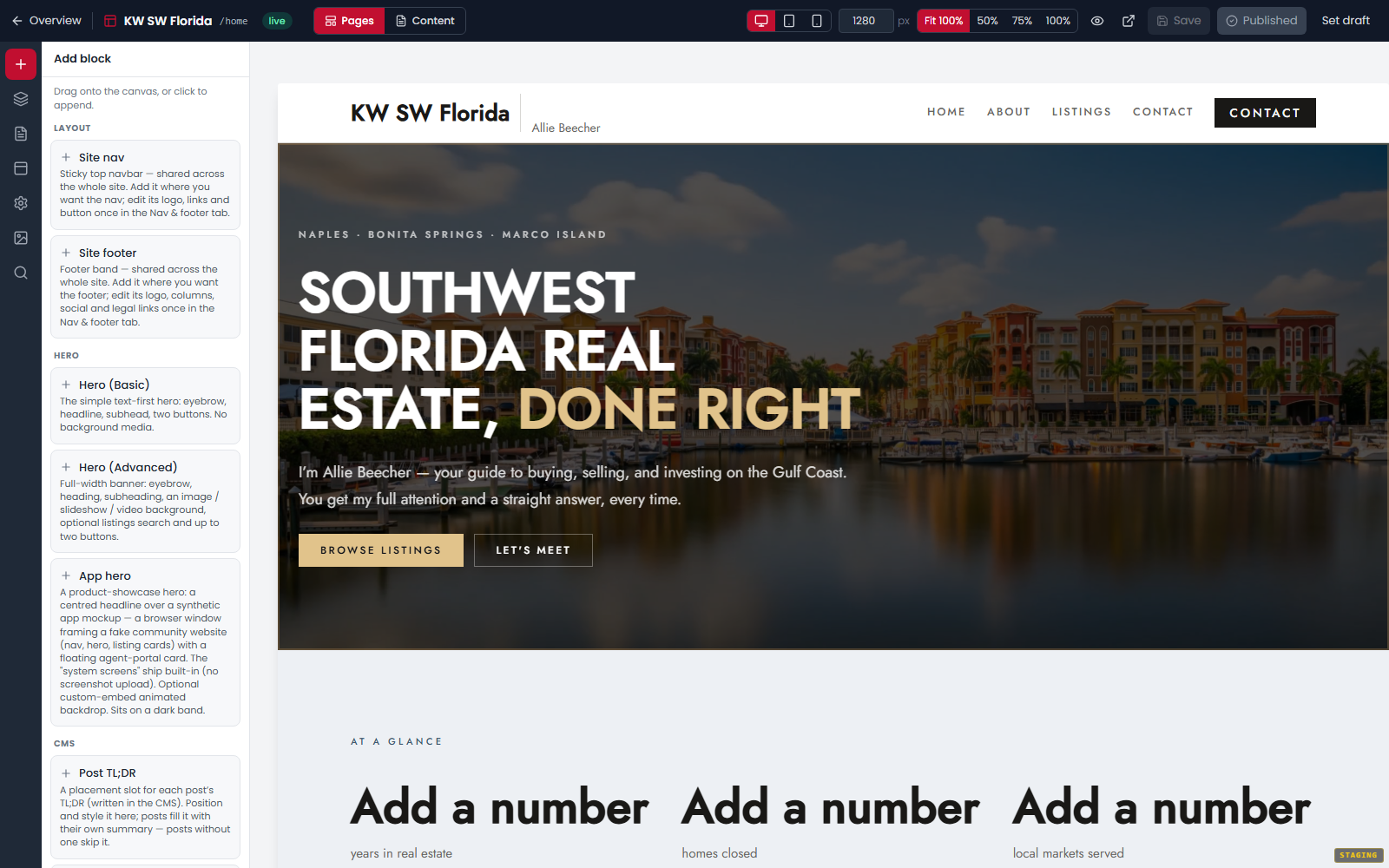
- Top bar — which page you're on, the Draft/Live badge, device and zoom controls, preview links, and Save / Publish / Go live.
- Left icon rail — seven panels: Add (blocks), Navigator, Pages, Nav & footer, Site settings, Assets, SEO.
- Canvas in the middle — your real page, exactly as visitors will see it.
- Inspector on the right — appears only when you select a section. If you're hunting for a settings panel and can't find one, click a section first.
Working with sections
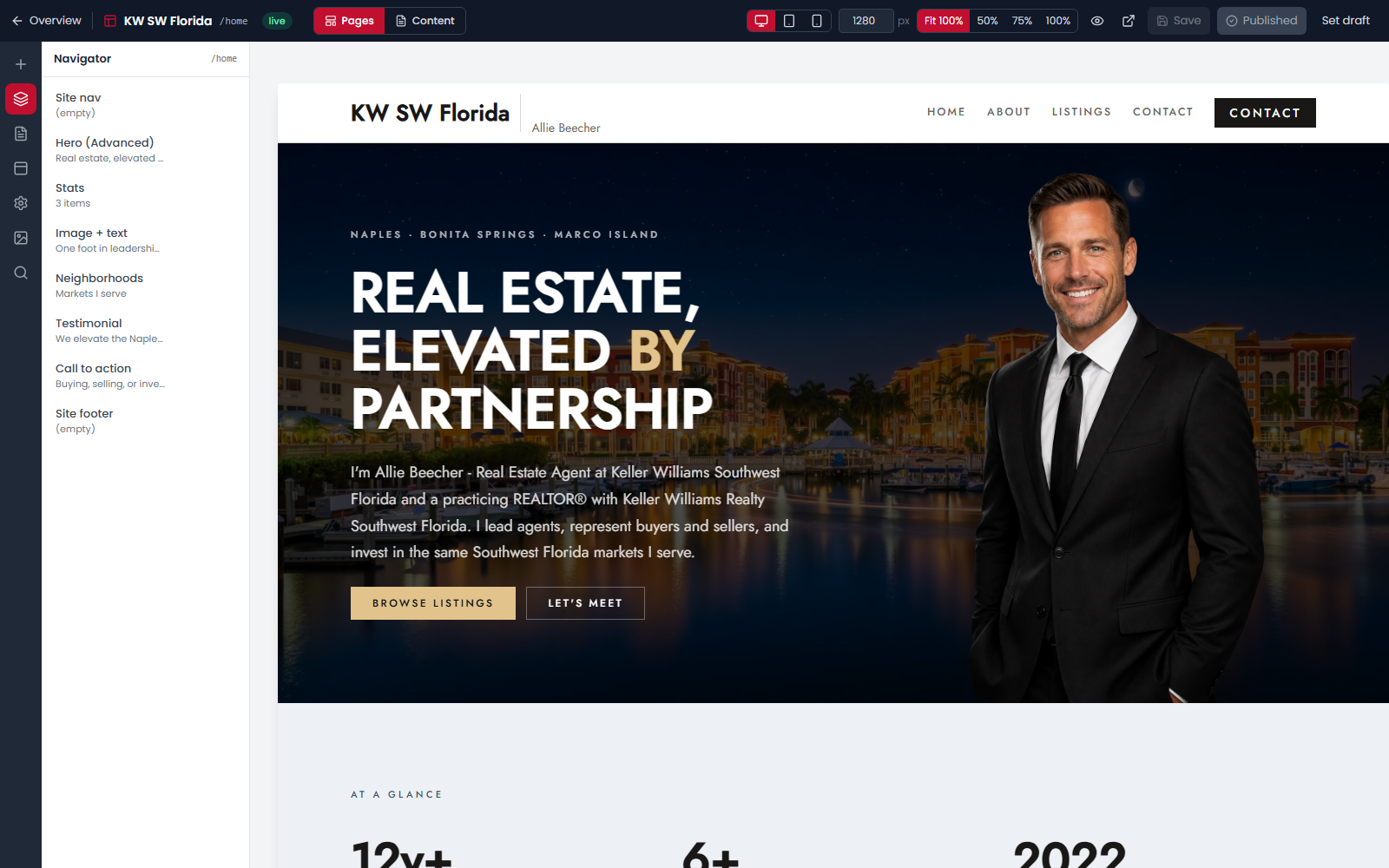
Every part of a page is a block you pick from a library of around forty.
- Add one: click Add (+), then click a block to drop it in, or drag it onto the canvas — a blue line shows where it'll land.
- Select one: click it. The inspector opens with its settings.
- Move one: drag it, use the arrows on its floating toolbar, or press ↑ / ↓.
- Delete one: press Delete, or use the toolbar bin. You'll be asked to confirm, and there's no undo.
New blocks arrive with obvious placeholder text like "Example heading" — that's on purpose, so you can see what to replace.
Things that only run on the real page
Slideshows, carousels, tabs, listing searches and contact forms show a still first frame on the canvas. They're not broken — they only come alive on the published page or in preview. Always check anything moving or interactive via the eye icon preview rather than judging it from the canvas.
What's different on a personal site
Almost nothing, but three things are worth knowing:
- The Listings block has an extra choice — show your own listings or your community's whole inventory. See [Show your listings](show-your-listings).
- Save as template isn't available; that's a community-admin tool.
- A few controls in the editor were built for community admins and won't work for you: the Re-host all external button in Assets will just say "Unauthorized", and the logo control in Nav & footer links to a Branding page you can't open. Upload images directly instead, and leave branding to your community.
Saving vs publishing
Save keeps your work privately. Publish makes the current page public — and it really is only the current page. The full explanation is in [Publish your site](publish-your-site); it's the single most common source of "but I saved it" confusion.
Check it on a phone
Use the device buttons in the top bar to see desktop, tablet and phone widths. Plenty of your visitors will arrive on a phone, and a hero image that looks great wide can crop badly narrow.
The editor itself is built for a desktop screen — build on a laptop, not a phone.