---
title: "Embed a map, video, or custom HTML"
url: "https://mycommunitysync.com/embed-block"
community: "CommunitySync"
description: "The escape-hatch block for anything the other blocks can’t do — an image, a third-party iframe, or raw HTML."
updated: "2026-07-18T18:45:00.616+00:00"
---
# Embed a map, video, or custom HTML
*Website Builder*
Most of your page comes from purpose-built blocks, but sometimes you need to drop in something they don't cover — a Google Map, a YouTube video, or a snippet of markup from another service. The **Embed / HTML** block is the escape hatch for exactly those one-off cases. Like the rest of the website builder, it's edited by community owners and admins in the orange platform panel.
## Add the Embed / HTML block
1. Open the full-screen editor for your site. If you're not sure how, see [Open the website editor](/open-the-website-editor).
2. In the left icon rail, click **Add** to open the block picker.
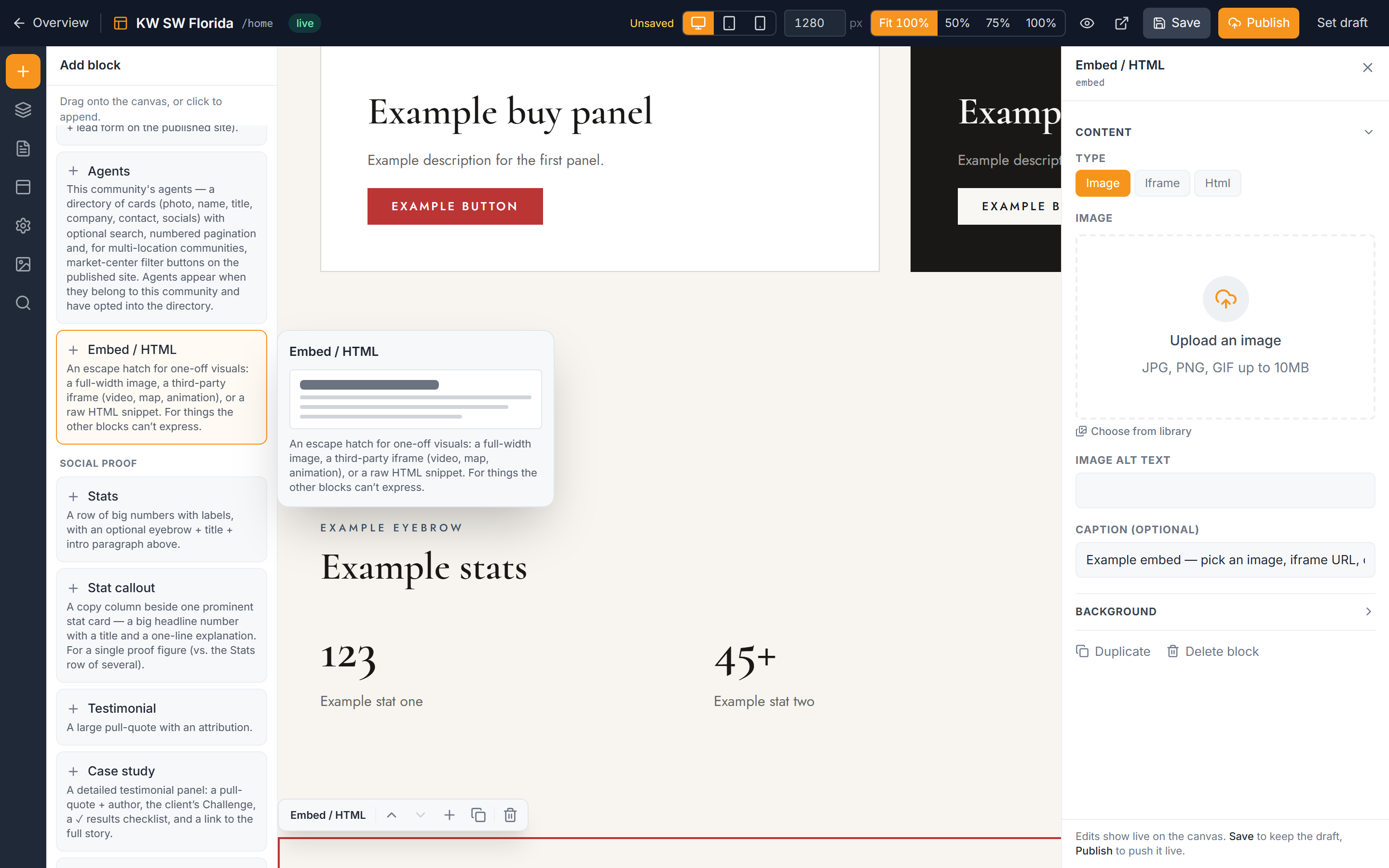
3. Under the **Content** group, choose the **Embed / HTML** block. It drops onto the canvas where you can position it like any other block — see [Add and arrange blocks](/add-and-arrange-blocks).
4. With the block selected, open the right inspector to set its **Type** and content.
## Choose a type and fill the matching field
The block does one thing at a time. Set the **Type** to match the kind of content you're adding, then fill the field that appears for it.
1. In the inspector, set **Type** to one of:
- **Image** — for a single image. Paste or pick the image URL.
- **Iframe** — for embedded third-party content like a map or a video.
- **HTML** — for raw markup you paste in yourself.
2. Fill the field that matches your chosen type (see below).
3. Optionally add a **caption** — a short line of text shown beneath the embed.
### Embedding an iframe (maps, videos)
Set **Type** to **Iframe**, then paste a **bare embeddable URL** into the iframe field — not a full `` tag. Copy only the web address from inside the tag's `src` and paste that instead.
### Website Builder
- [Add calls to action (CTA bands and buyer/seller guides)](https://mycommunitysync.com/calls-to-action.md)
- [Add social proof: stats, testimonials, case studies, and logos](https://mycommunitysync.com/social-proof-blocks.md)
- [Add a contact or lead form to your website](https://mycommunitysync.com/add-a-lead-form.md)
- [Show your property listings on your website](https://mycommunitysync.com/listings-on-your-website.md)
- [Add an agent directory (and team blocks)](https://mycommunitysync.com/agent-directory-on-your-website.md)
- [Set up your site's navigation menu](https://mycommunitysync.com/set-up-site-navigation.md)
- [Build your website footer](https://mycommunitysync.com/build-your-footer.md)
- [Add, rename, and organize pages](https://mycommunitysync.com/manage-website-pages.md)
- [Reuse a layout with page templates](https://mycommunitysync.com/page-templates.md)
- [Manage your website images (Asset Library)](https://mycommunitysync.com/manage-website-images.md)
- [Add alt text to images (accessibility & SEO)](https://mycommunitysync.com/image-alt-text.md)
- [Open the website editor and find your way around](https://mycommunitysync.com/open-the-website-editor.md)
- [Add, move, and remove blocks on a page](https://mycommunitysync.com/add-and-arrange-blocks.md)
- [Edit a block's content in the inspector](https://mycommunitysync.com/edit-block-content.md)